Language Learning Management System (LLMS)
1. Introduction
System Overview
The Language Learning Management System (LLMS) is integrated with the School Management System (SMS). It enables schools to manage language learning programs for students through a centralized, role-based platform.
The LLMS is designed to support:
- School administrators for system configuration and monitoring
- Teachers for managing learning journeys and student progress
- Students for accessing the assigned language learning content
Guide For
- School Admins – system setup, language configuration, journey management, analytics
- Teachers – journey usage, topic management, student tracking
- Students – accessing and completing assigned learning journeys
Key Capabilities Overview
- Role-based login (Admin, Teacher, Student)
- Centralized dashboard with learning insights
- Journey and topic management
- Language configuration
- Student onboarding via SMS integration
- Progress tracking and analytics
2. Login & User Roles
LLMS authentication is connected with the School Management System (SMS).
2.1 School Admin Login
- School admins log in using credentials created in the SMS
- Full access to all LLMS modules:
- Dashboard
- Journeys
- Topics
- Languages
- Users & Analytics
Admins are responsible for configuring the learning structure and monitoring overall system usage.
2.2 Teacher Login
- Teachers log in using credentials provided by the school
- Access to:
- Assigned journeys and topics
- Student progress tracking
- Learning content review
2.3 Student Application Login
- Students log in using credentials shared on parent email by the school at the time of admission
- Students can:
- Access assigned learning journeys
- View topics and questions
- Track their learning progress
3. Dashboard – System Overview
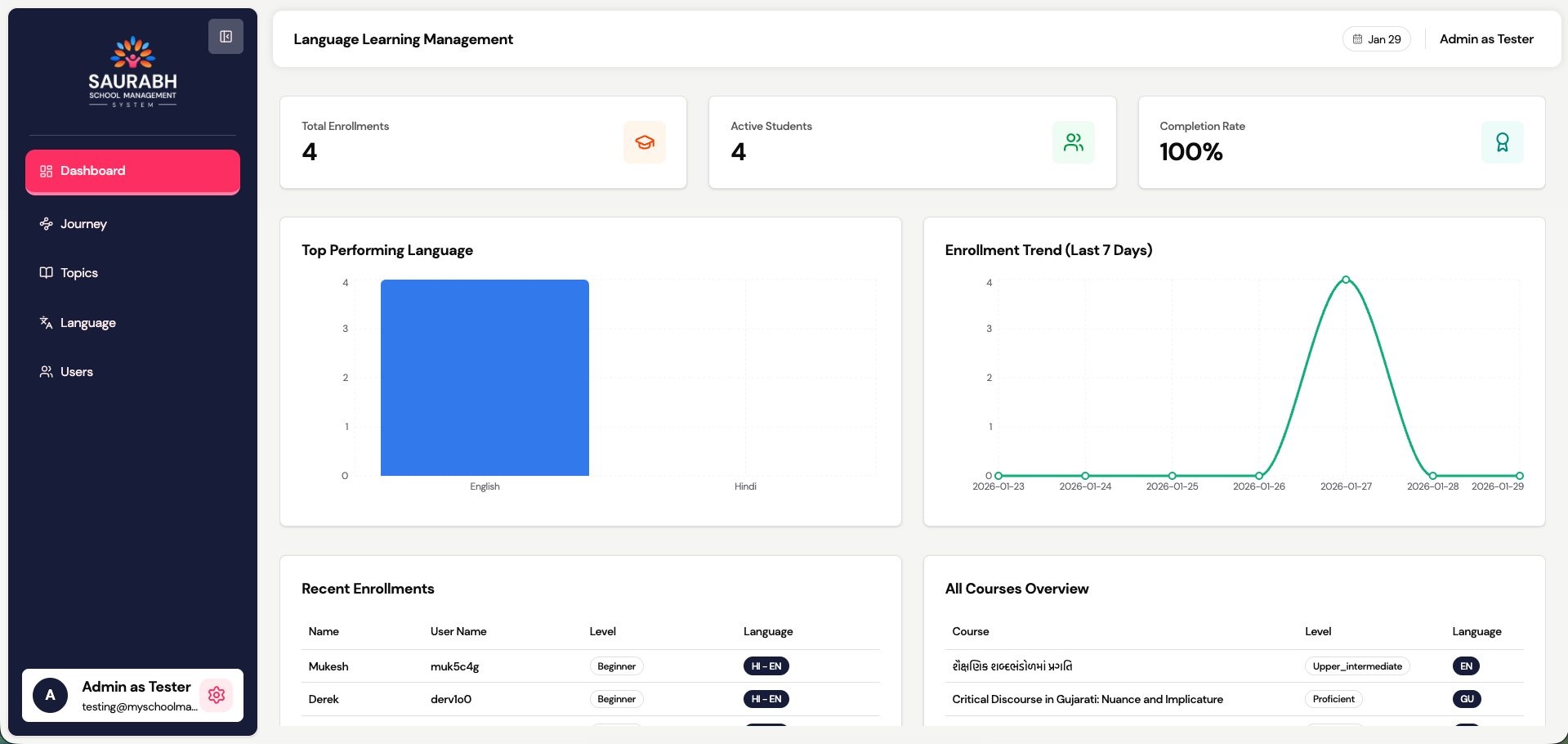
The Dashboard provides a consolidated view of learning activity across the school.
Key Metrics Displayed
- Total Student Enrollments
- Active Students
- Journey Completion Rate
- Language-wise Performance Summary
- Enrollment Trends (recent activity)
Additional Sections
- Recent Student Enrollments
- Available Journeys Overview
4. Journey Management
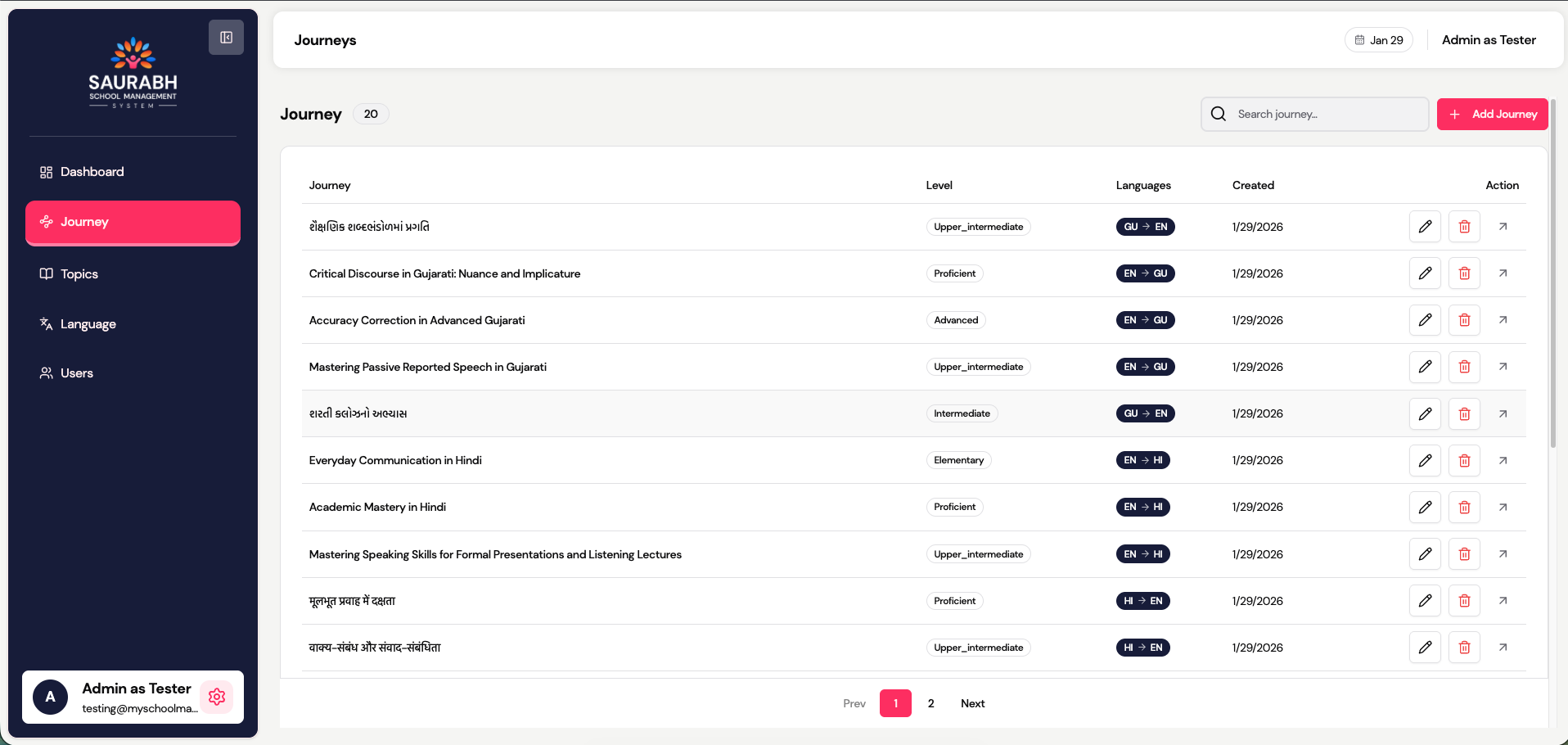
Journeys represent structured language learning paths assigned to students.
4.1 View Journeys
- List of all available journeys
- Search journeys by name
- View associated level, languages, and creation date
4.2 Journey Structure
Journey → Quizzes → Questions4.3 Create a New Journey
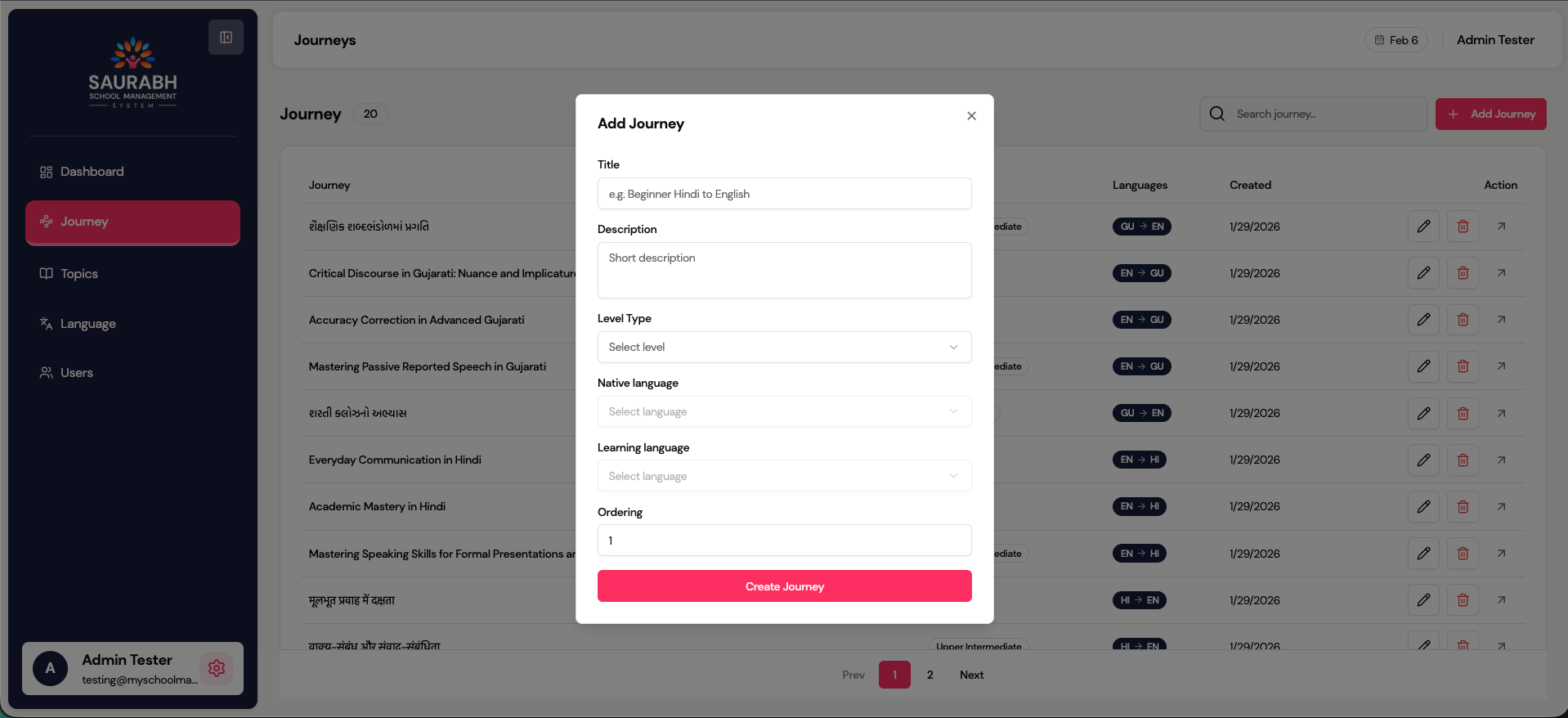
- Click Add Journey
- Select:
- Title
- Native Language
- Learning Language
- Learning Level (Beginner / Intermediate / Advanced)
4.4 Preview, Edit & Create Journey
- Review the complete journey structure
- Edit topics or questions if required
- Save the journey to make it available for teacher assignment and student access
4.5 View Quizzes
- List of all created quizzes under the journey
- Search quiz by name
- View associated level, energy, diamond, points
4.6 Structure
Journey → Quizzes → Questions4.7 Create a New Quiz
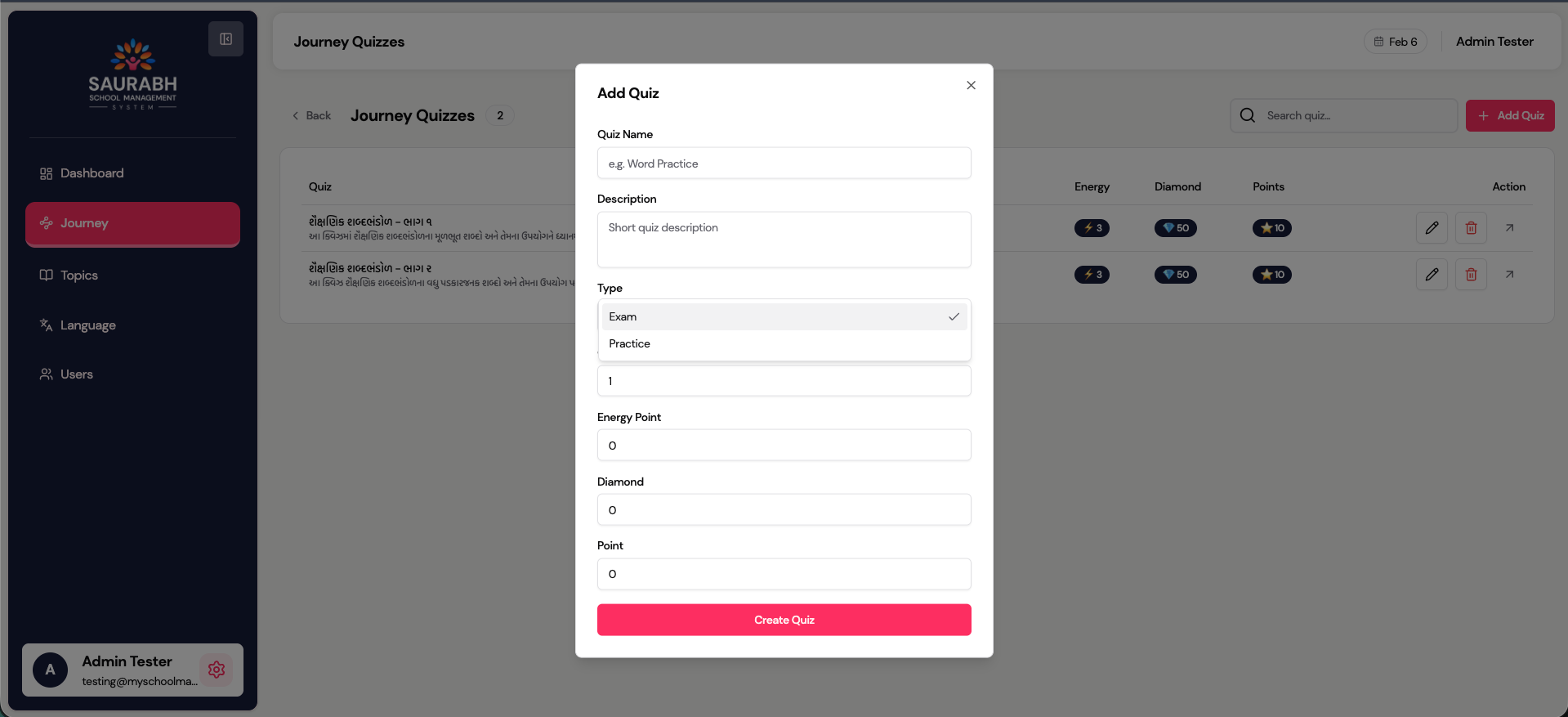
- Click Add Quiz
- Select:
- Name
- Description
- Type
💡The system provides two types of quizzes: Exam and Practice. Each type is designed for a different learning purpose.Practice Quiz
- Students can attempt the quiz multiple times.
- Hints and example solutions are available to help understand the questions.
- Ideal for learning, self-practice, and improving subject knowledge.
- Students can freely retry questions without restrictions.
Exam Quiz
- Students can attempt the quiz only once (no retries allowed).
- Hints, examples, and helper details are not available during the quiz.
- Designed to evaluate actual knowledge and performance.
- Results are shown only after the quiz is completed.
- Learning Level (Beginner / Intermediate / Advanced)
- Ordering (Order of the quiz)
- Energy Point(Student will get the energy point on completing the quiz)
- Diamond(The student will get the total diamonds on completing the quiz)
- Point(The Student will get the total points on completing the quiz)
4.8 Preview, Edit & Create Quiz
- Review the complete quiz structure
- Edit quiz if required
- Save the quiz to make it available for teacher assignment and student access
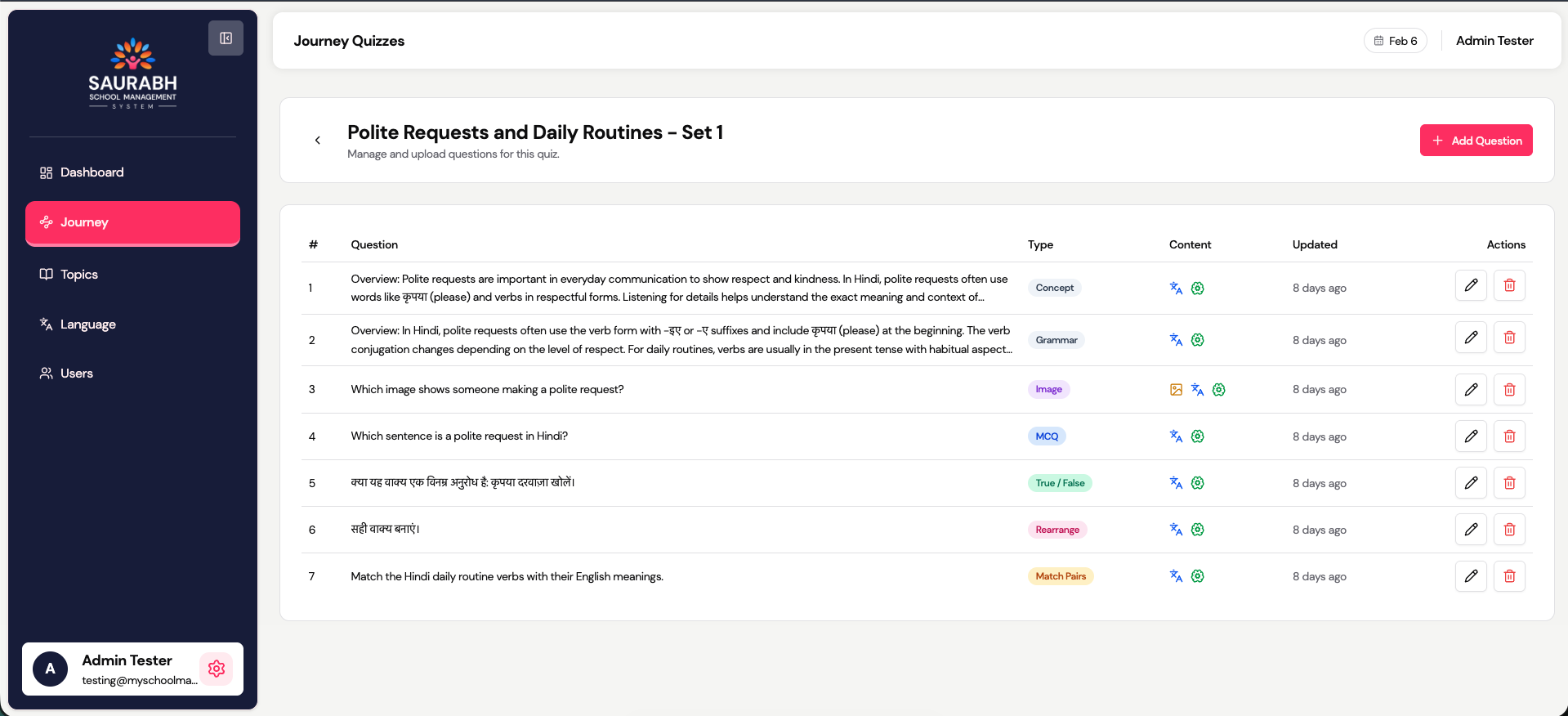
4.9 View Questions
- List of all available questions
- View associated question, type, content info, and created/updated date
4.10 Journey Structure
Journey → Quizzes → Questions
4.11 Create a New Question
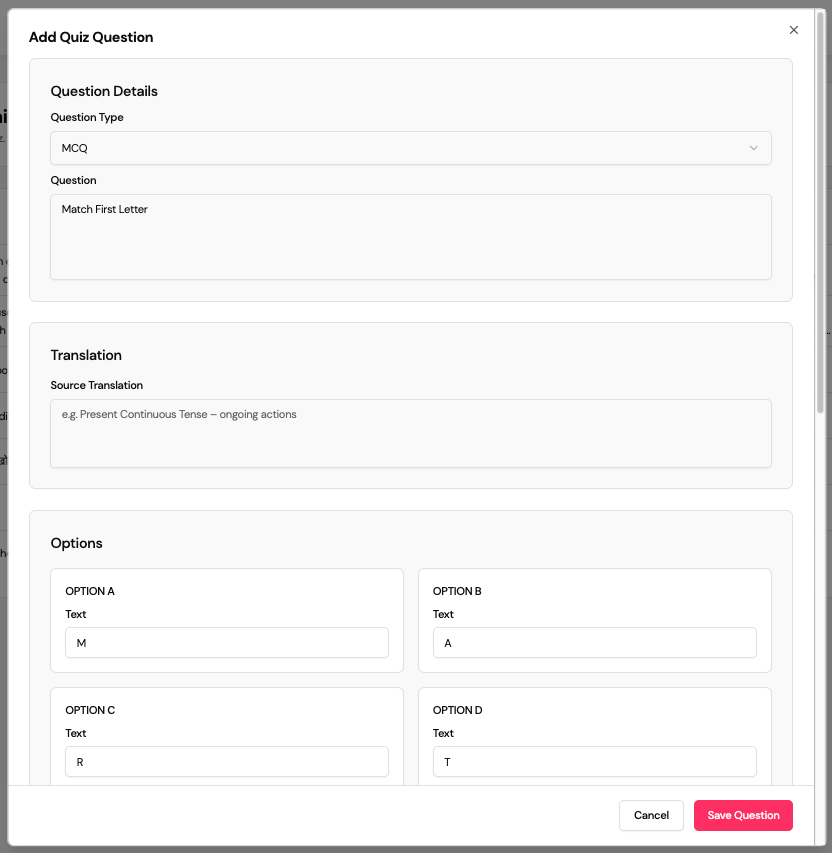
- The Add Quiz Question form allows teachers or admins to create different types of quiz questions. Based on the selected Question Type, the form dynamically shows relevant fields.
- Click Add Question
- Fields:
- Question Type(Select the type of question you want to create. Each type supports a different assessment style.)
💡Supported question types include:
- Descriptive
- Grammar Explanation
- MCQ (Multiple Choice Question)
- Fill in the Blanks
- True / False
- Image-based MCQ
- Match Pairs
- Rearrange Words
- Question(Enter the main question text that will be shown to the student.)
- Translation(Use this field to provide a reference sentence, base text, or translated content related to the question.)
- Options (Shown for Objective Question Types)
💡This section appears for question types such as:
- MCQ
- Image MCQ
- Match Pairs
Option Fields
- Enter option text for each choice (Option A, B, C, D).
- For Image MCQ, you can upload an image for each option.
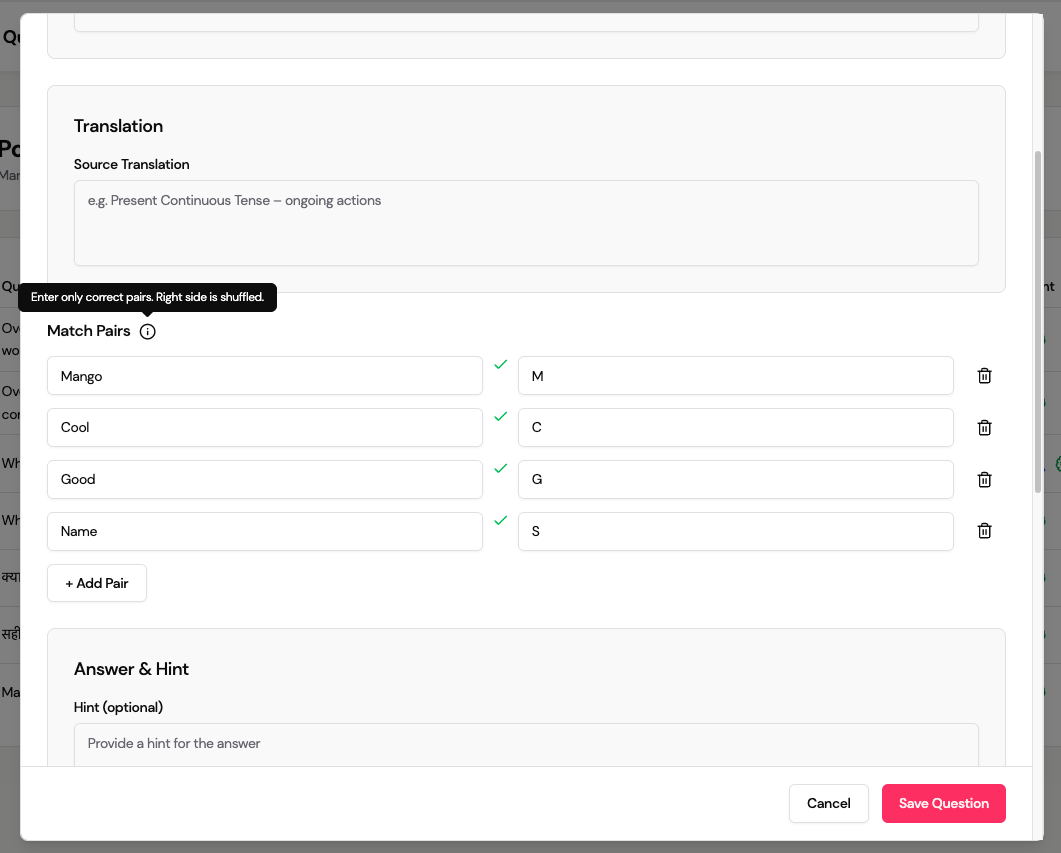
- Match Pairs
💡- Add pairs by entering values on the Left and Right sides.
- Students will need to match related items correctly.
- Answer & Hint
💡Correct Answer
Select or enter the correct answer for the question.
- For MCQs: select the correct option
- For descriptive or rearrange questions: enter the correct text
- Hint (Provide a helpful hint that students can use only in practice quizzes.
)
- Note (Hints are not visible in exam-type quizzes.)
- Answer Explanations
💡Explanation (Correct Answer)
Explain why the correct answer is right.
This helps students understand concepts clearly after submission.
Explanation (Wrong Answer)
Explain why other answers are incorrect.
This is useful for learning from mistakes.
- Grammar & Cultural Context
💡Cultural Note
Use this field to explain:
- Cultural usage
- Language nuance
- Context-specific meaning
4.12 Preview, Edit & Create Questions
- Review the structure of all questions
- Edit questions if required
5. Topic Management
Topics are individual learning units that make up a journey.
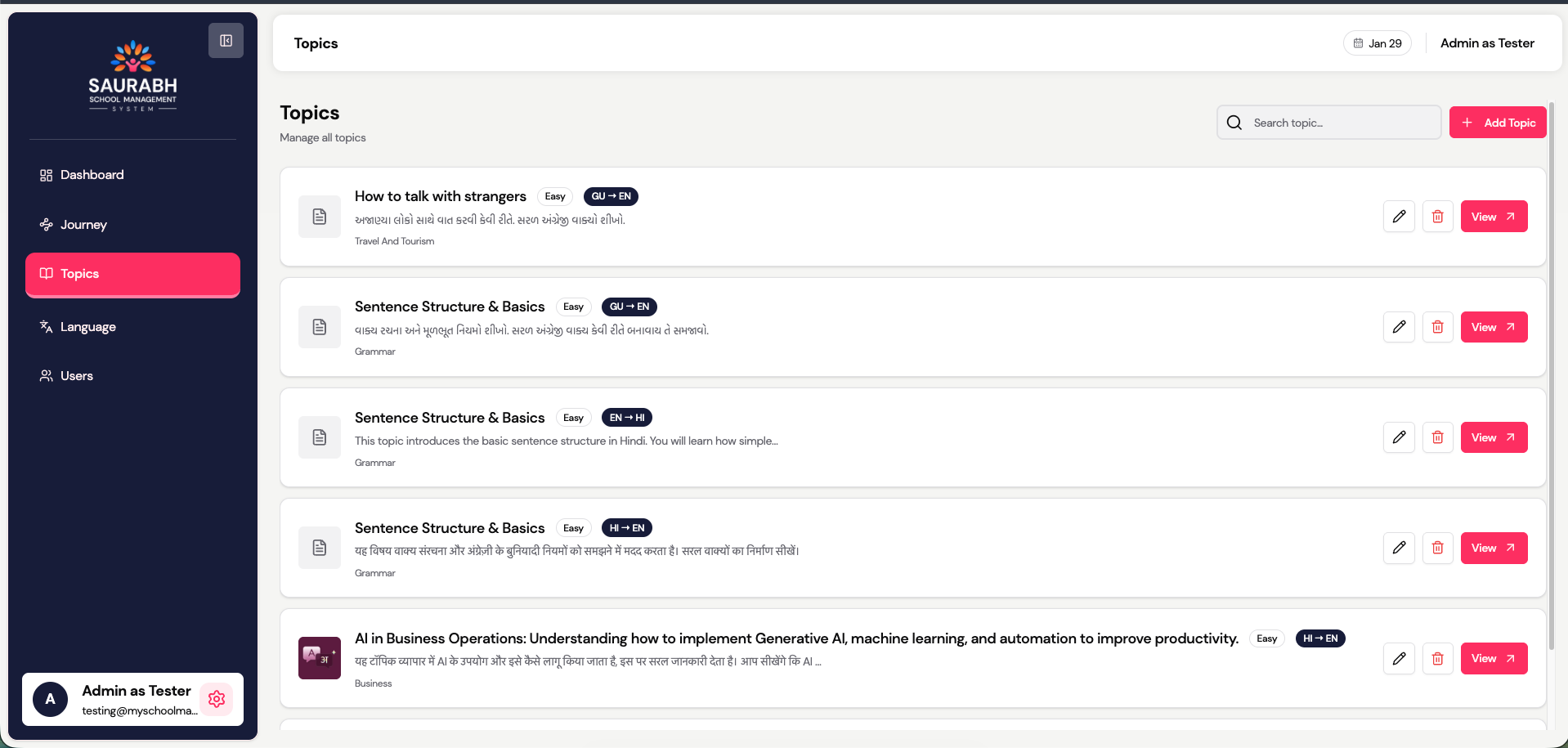
5.1 View Topics
- View all available topics
- Search topics by:
- Difficulty level
- Language
- Category
5.2 View Questions
- List of all available questions
- View associated question, type, content info, and created/updated date
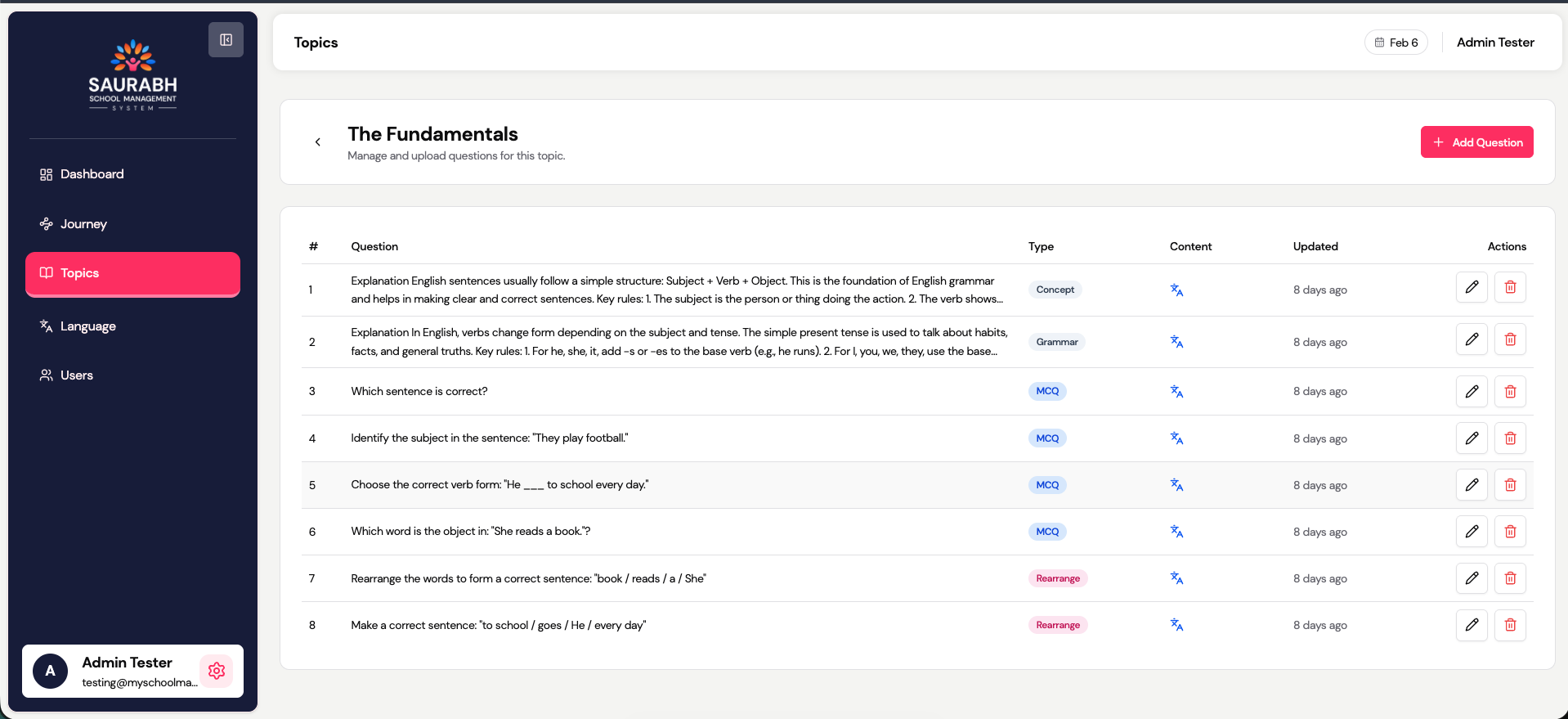
5.3 Topics Structure
Topics → Questions5.4 Create a New Question
- The Add Quiz Question form allows teachers or admins to create different types of quiz questions. Based on the selected Question Type, the form dynamically shows relevant fields.
- Click Add Question
- Fields:
- Question Type(Select the type of question you want to create. Each type supports a different assessment style.)
💡Supported question types include:
- Descriptive
- Grammar Explanation
- MCQ (Multiple Choice Question)
- Fill in the Blanks
- True / False
- Image-based MCQ
- Match Pairs
- Rearrange Words
- Question(Enter the main question text that will be shown to the student.)
- Translation(Use this field to provide a reference sentence, base text, or translated content related to the question.)
- Options (Shown for Objective Question Types)
💡This section appears for question types such as:
- MCQ
- Image MCQ
- Match Pairs
Option Fields
- Enter option text for each choice (Option A, B, C, D).
- For Image MCQ, you can upload an image for each option.
- Match Pairs
💡- Add pairs by entering values on the Left and Right sides.
- Students will need to match related items correctly.
- Answer & Hint
💡Correct Answer
Select or enter the correct answer for the question.
- For MCQs: select the correct option
- For descriptive or rearrange questions: enter the correct text
- Hint (Provide a helpful hint that students can use only in practice quizzes.
)
- Note (Hints are not visible in exam-type quizzes.)
- Answer Explanations
💡Explanation (Correct Answer)
Explain why the correct answer is right.
This helps students understand concepts clearly after submission.
Explanation (Wrong Answer)
Explain why other answers are incorrect.
This is useful for learning from mistakes.
- Grammar & Cultural Context
💡Cultural Note
Use this field to explain:
- Cultural usage
- Language nuance
- Context-specific meaning
5.5 Preview, Edit & Create Questions
- Review the structure of all questions
- Edit questions if required
6. Language Management
Languages define which language options are available in the system.
6.1 View Languages
- List of all configured languages
- Language name, code, and current status
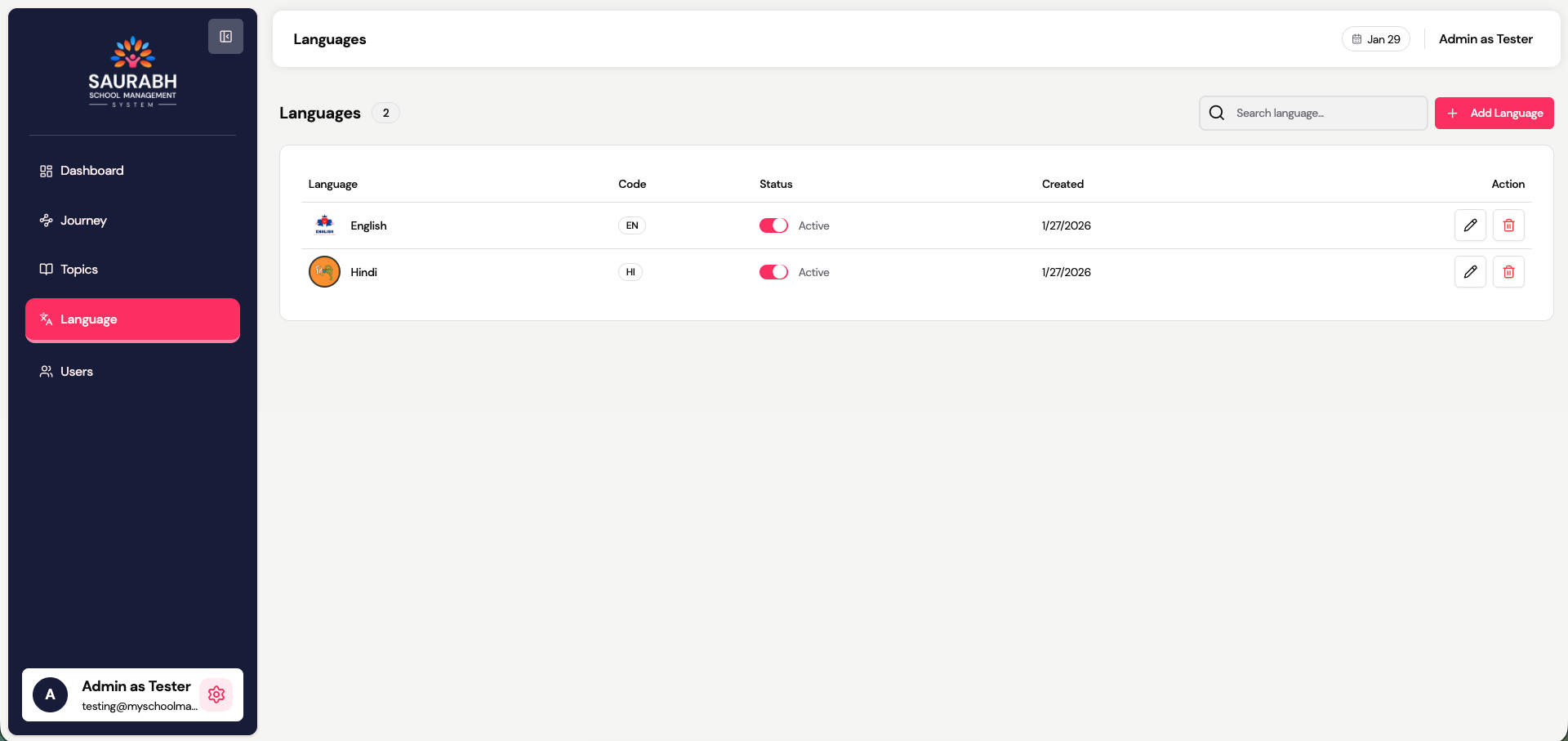
6.2 Add / Manage Languages
- Add a new language with:
- Language name
- Language code
- Enable or disable languages as needed
Important Note
Only active languages are available:
- During journey creation
- During topic creation
- For students inside the application
7. User Management & Analytics
This module allows administrators to manage students, monitor learning activity, and analyze progress at a detailed level. It provides both high‑level insights and deep, question‑level visibility into each learner’s journey.
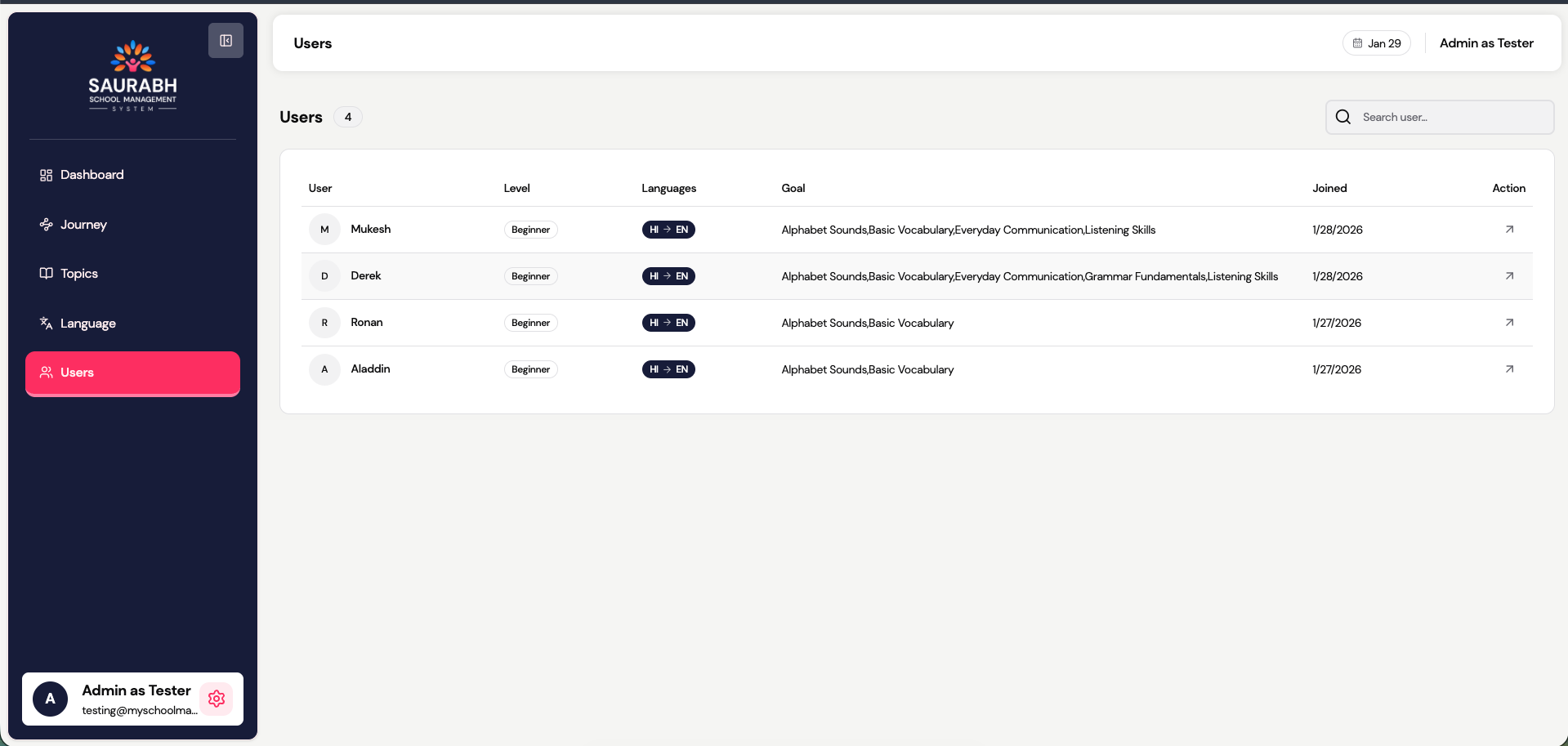
7.1 View Overview
- The Users section lists all learners onboarded through the system (SMS / platform integration).
- Displayed details include:
- User name & avatar
- Learning level (Beginner / Intermediate / Advanced)
- Selected learning languages
- Total journeys assigned
- Last activity status
7.2 User Profile Dashboard
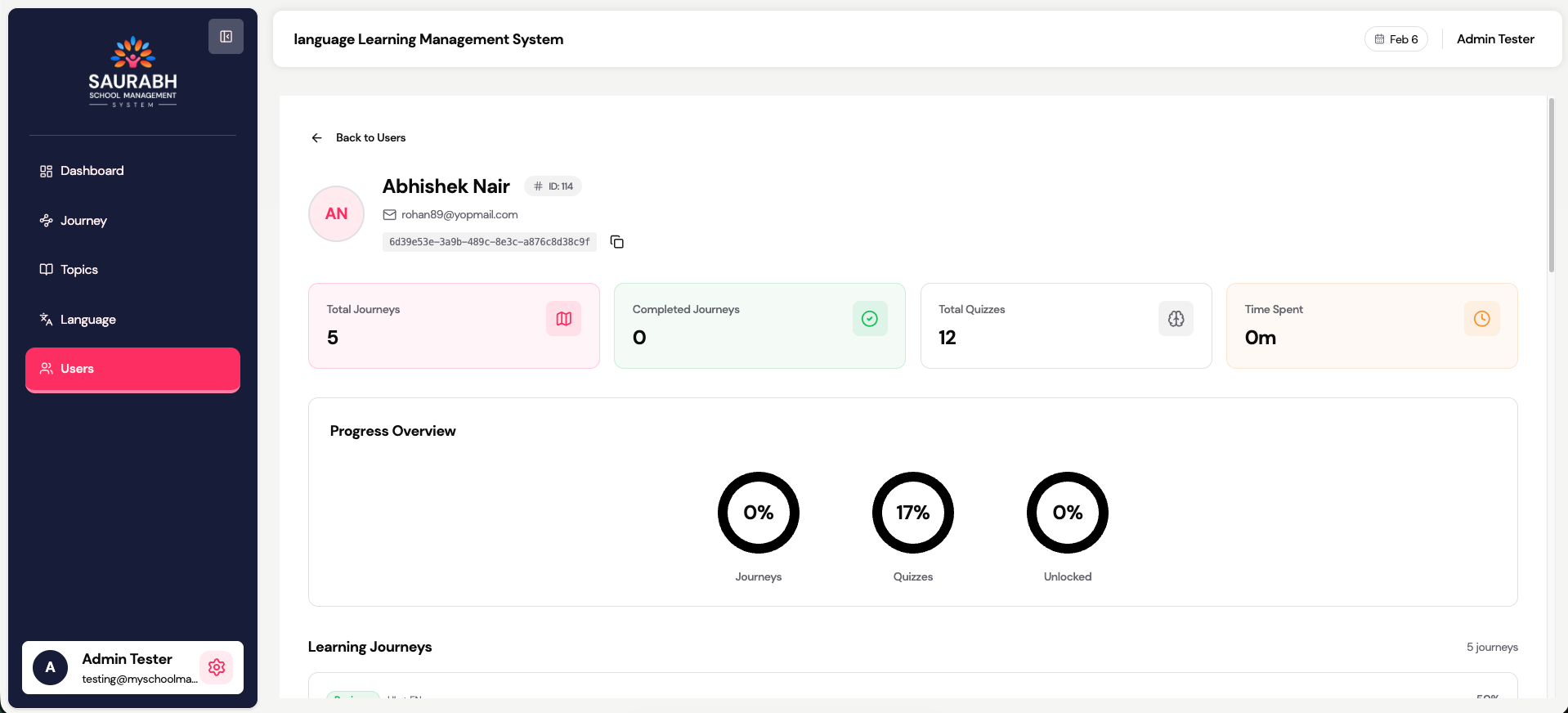
Clicking a user opens the User Profile Dashboard, which summarizes overall learning performance.
7.2.1 User Header Information
Displays basic identity and account information:
- User name
- Email address
- Unique system ID
7.2.2 Quick Stats Cards
High‑level metrics shown as cards for fast understanding:
- Total Journeys
Number of learning journeys assigned to the user
- Completed Journeys
Count of fully completed journeys
- Total Quizzes
Number of quizzes attempted across all journeys
- Time Spent
Total learning time spent on the platform
7.3 Progress Overview
This section provides a visual summary of learner progress using percentage indicators.
Metrics Displayed
- Journeys completion percentage
- Quizzes completion percentage
- Unlocked content percentage
Benefits
- Quickly assess learner engagement
- Identify inactive or struggling users

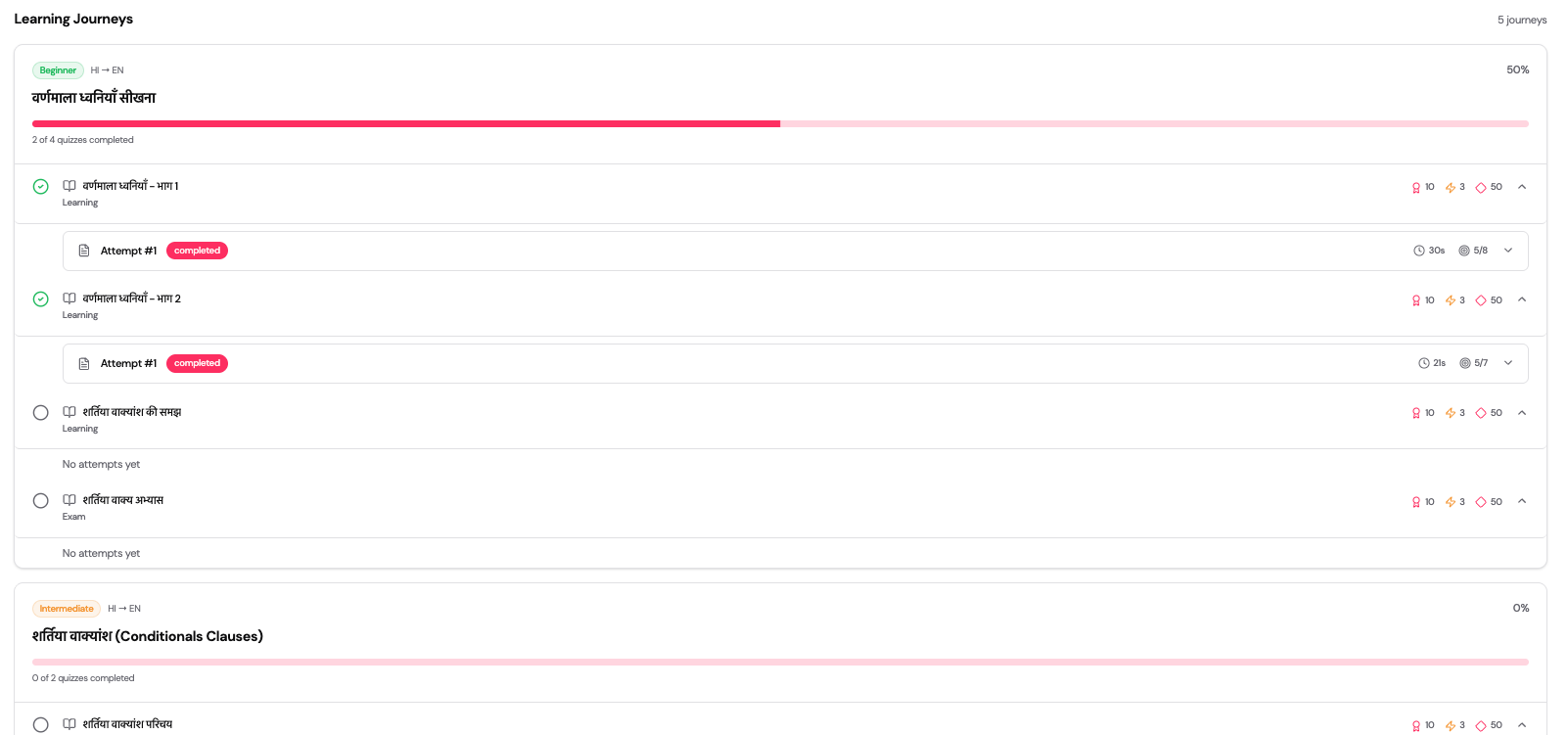
7.4 Learning Journeys
Shows all journeys assigned to the learner with progress details.
Journey Information
- Journey title
- Difficulty level (e.g., Beginner)
- Language pair (e.g., HI → EN)
- Overall completion percentage
- Quizzes completed vs total quizzes
Progress Bar
- Visual indicator showing journey completion status
7.5 Journey Modules & Attempts
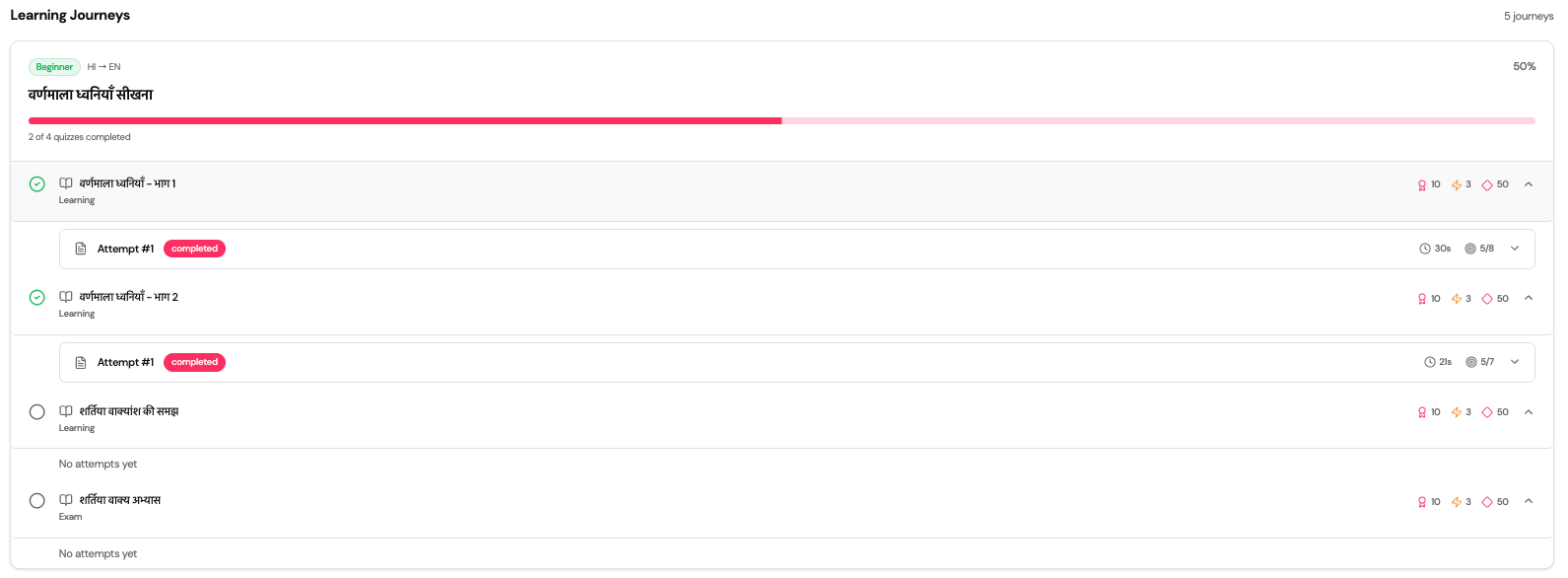
Each journey can be expanded to view modules and quiz attempts.
7.5.1 Module Status
- Module name
- Learning status (Learning / Completed)
- Quiz count per module
7.5.2 Quiz Attempts
Each quiz shows:
- Attempt number
- Attempt status (Completed / Auto‑completed)
- Time spent
- Score summary
7.6 Quiz Details & Question Analysis
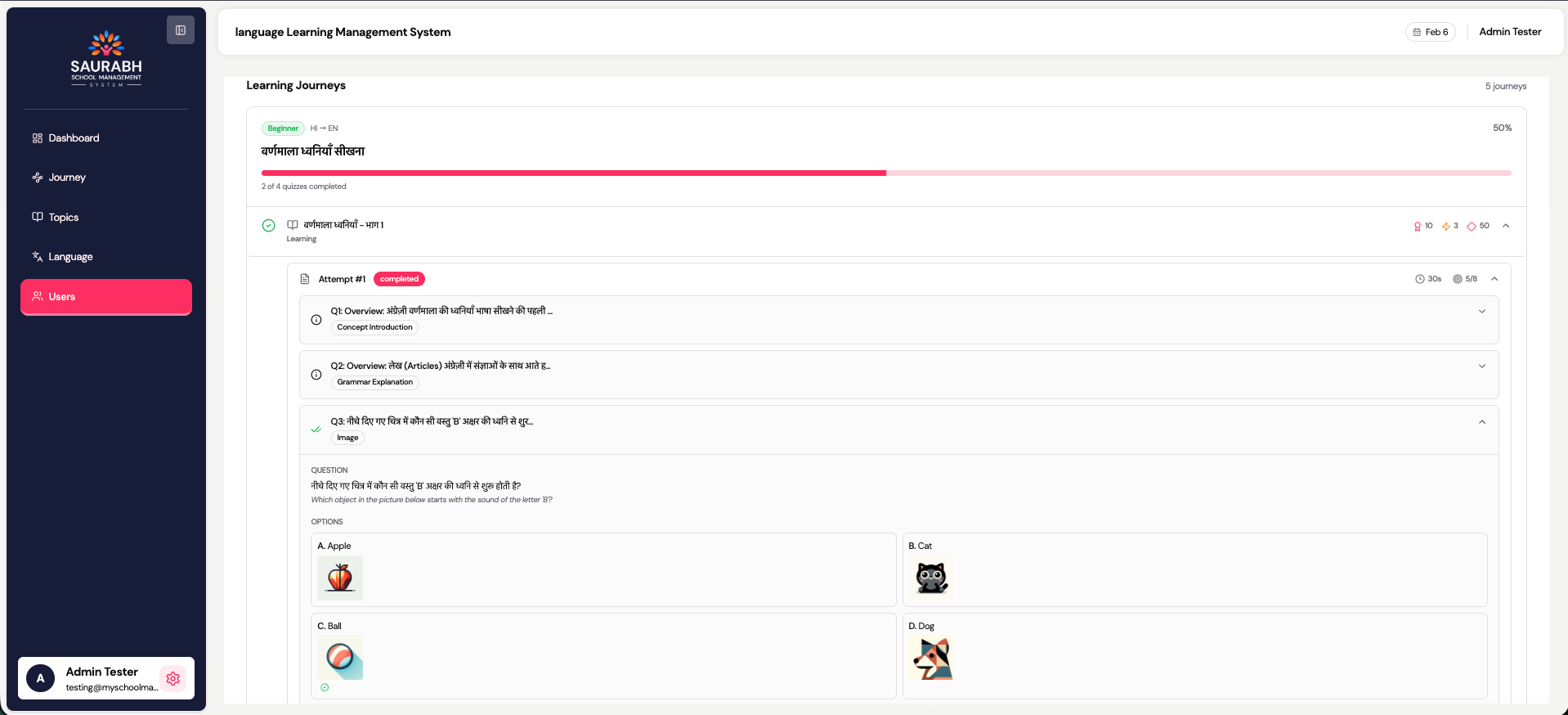
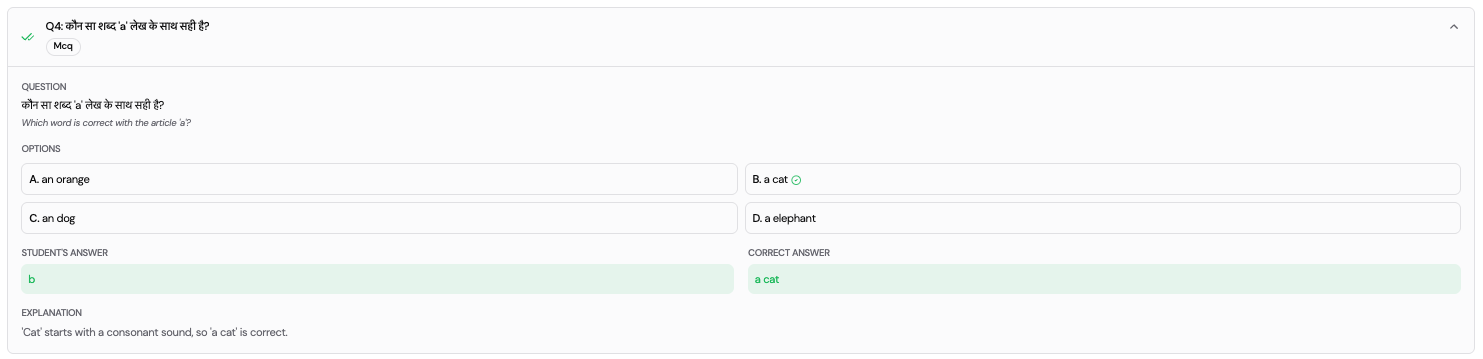
Expand any quiz attempt to view question‑level details.
7.6.1 Question Overview
For each question, the following is displayed:
- Question number & type
- Question content (text/image/explanation)
- Options (if applicable)
Supported Question Types:
- Concept introduction
- Grammar explanation
- Image‑based questions
- MCQ
- True / False
- Fill in the blanks
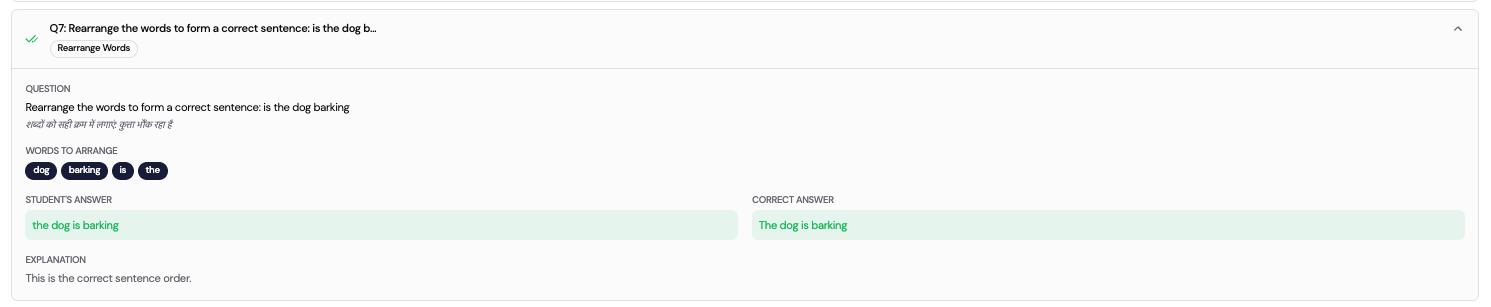
- Rearrange words
- Match pairs


8. Student Learning Experience
Students interact only with content assigned by the school.
Students Can:
- View assigned journeys
- Open topics and attempt questions
- Track progress across journeys
Students cannot:
- Create or edit journeys
- Modify topics or languages
9. Best Practices
- Keep language configurations up to date
- Use clear and consistent topic naming
- Assign journeys according to student level
- Regularly review the dashboard and analytics
10. Support & Maintenance
- Ensure SSMS and LLMS data remain synchronized
- Disable unused languages and journeys
- Periodically review student activity and progress