SSMS LMS — Admin Guide
The Admin Panel lets you manage teachers, students, classes, and all learning content.
It also allows you to monitor academic performance and control LMS access.
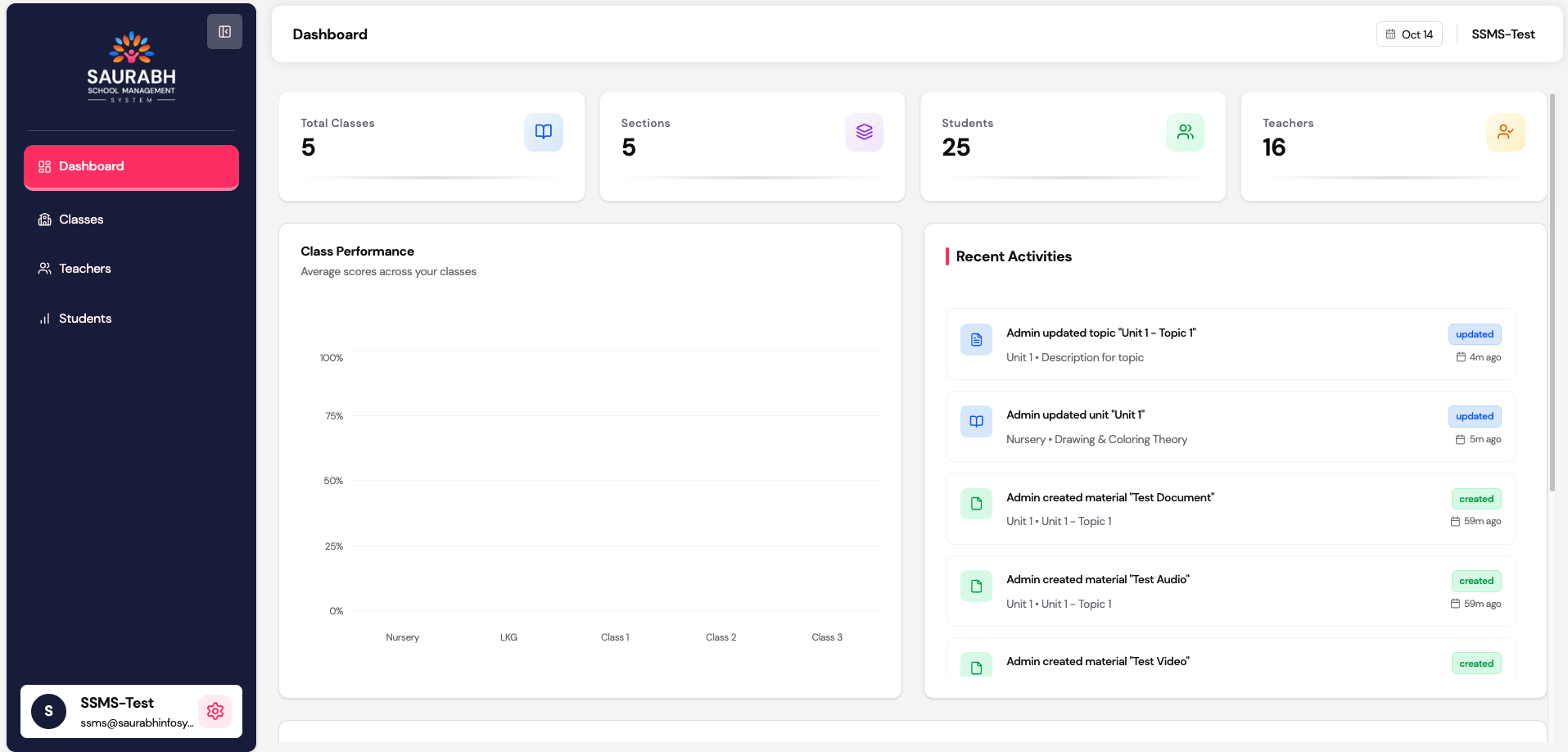
🔐 Login & Dashboard
- Login using Admin credentials
- Dashboard displays:
- Total Teachers, Students, and Classes
- Quick links to manage content
- Overview of student progress
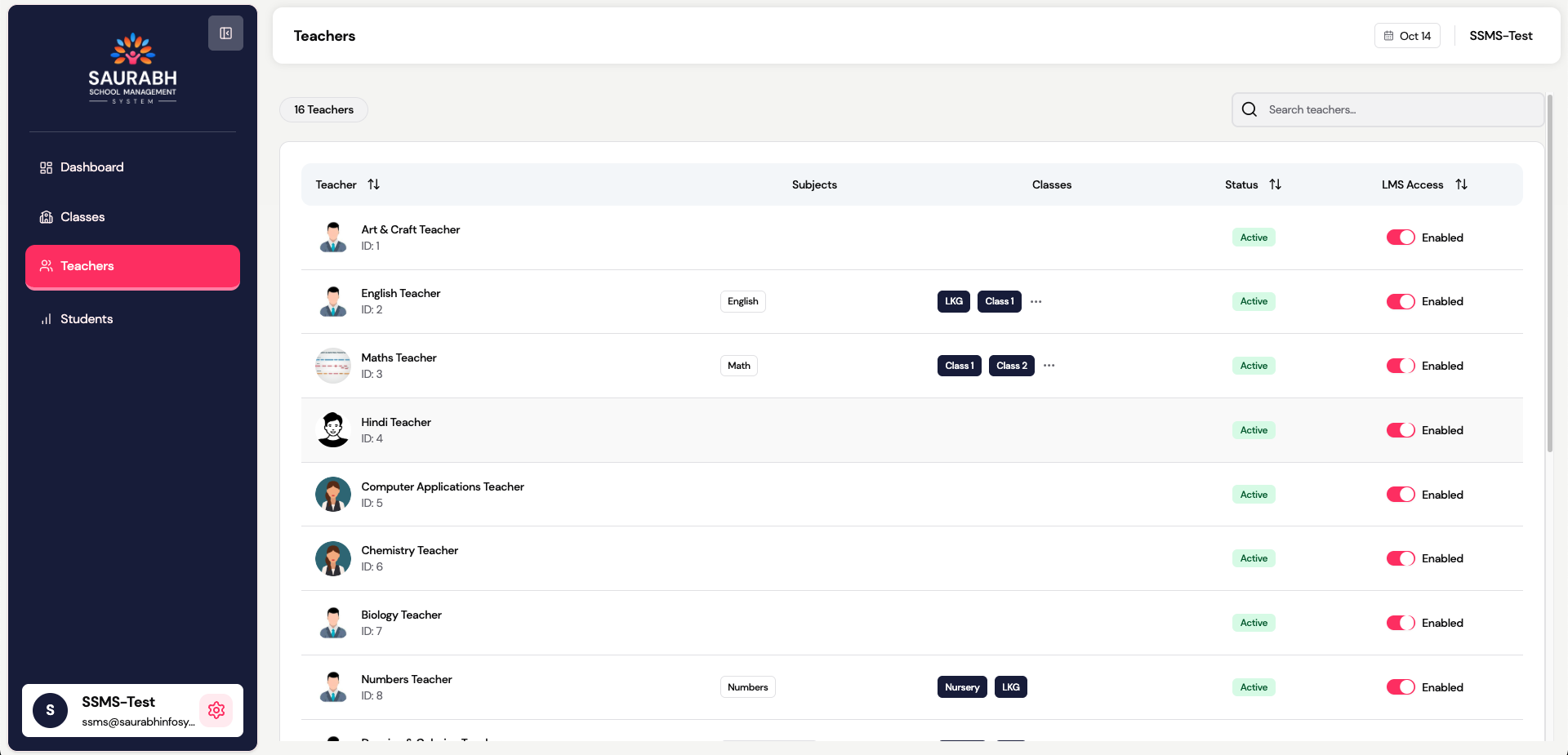
🧑🏫 Manage Teachers
Path: Admin → Teachers
- Admin can view teachers that areautomatically synced from the SMS (School Management System)
- Subject assignment is not available in LMS, as subjects are already assigned in the SMS
- Toggle LMS Access ON/OFF to grant or revoke teacher login access to the LMS
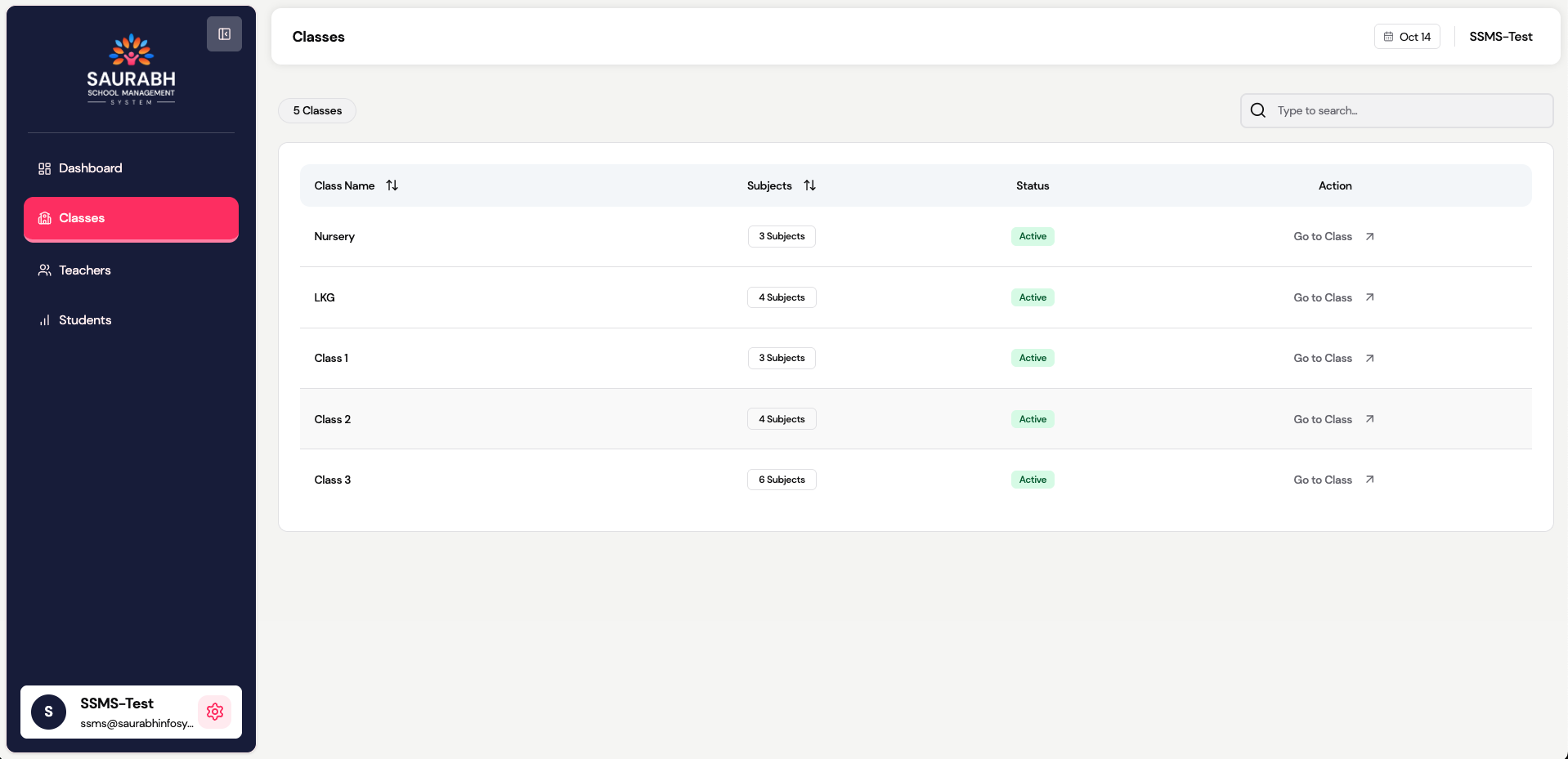
🏫 Manage Classes & Subjects
Path: Admin → Classes
- Classes and subjects areautomatically fetched from the SMS (School Management System)
- Adding, updating, or deleting classes and subjects is not allowedin the LMS
- Class–subject mapping is managed in the SMS and reflected here for reference and reporting
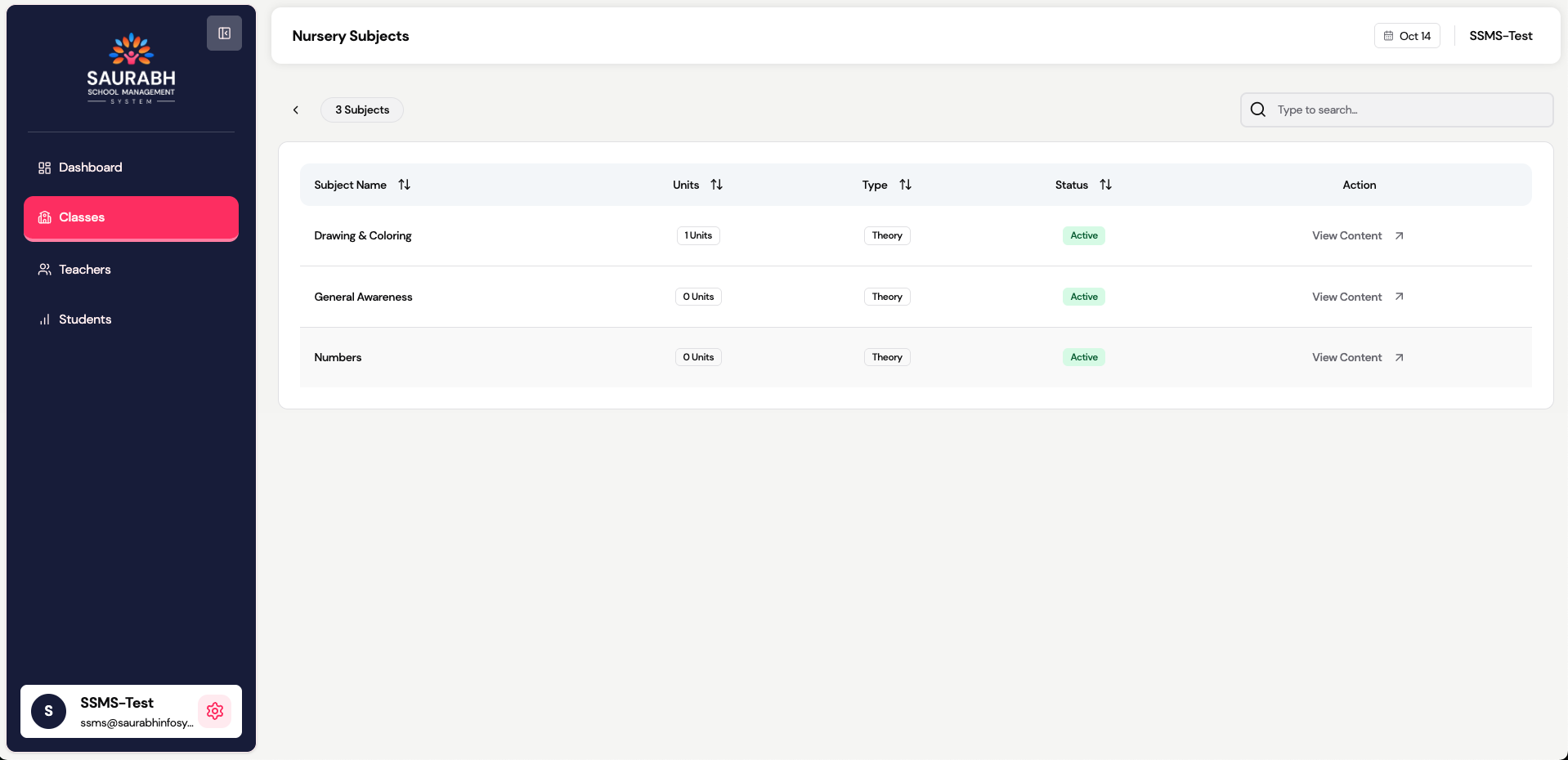
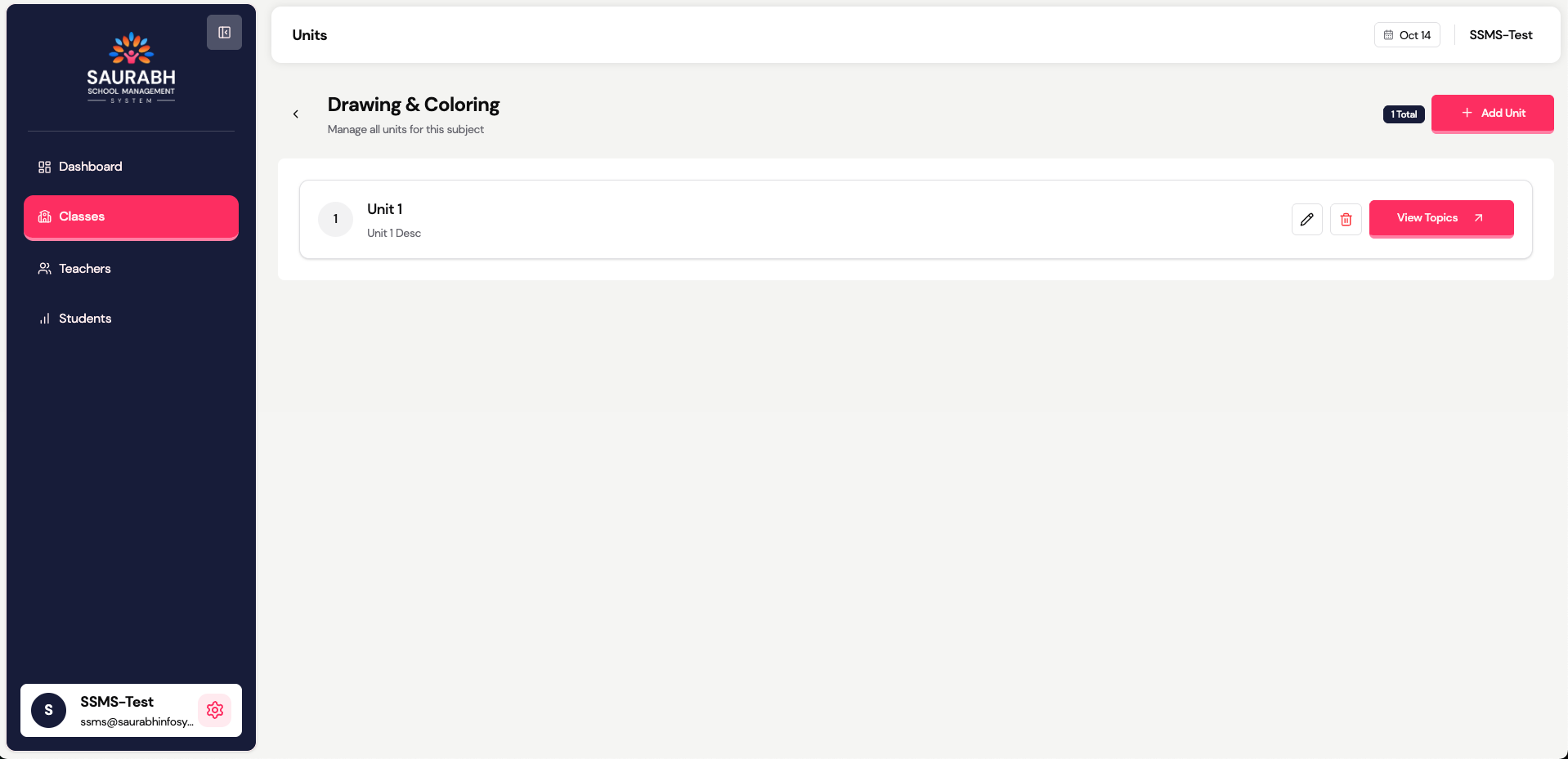
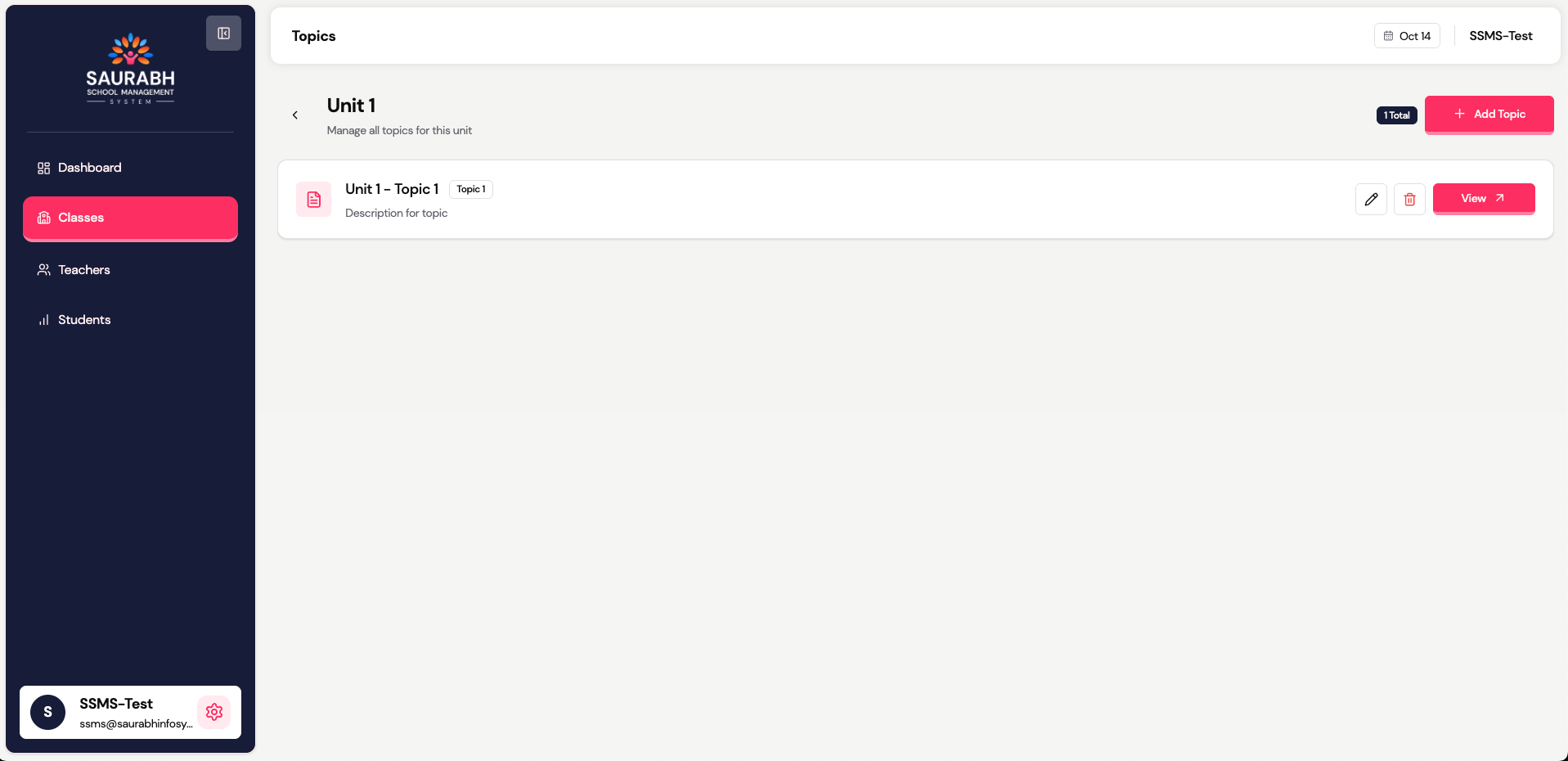
📚 Units & Topics
- View or edit any subject’s structure
- Add Units (e.g., Unit 1 – Fractions)
- Add Topics inside each unit
- Maintain consistent numbering
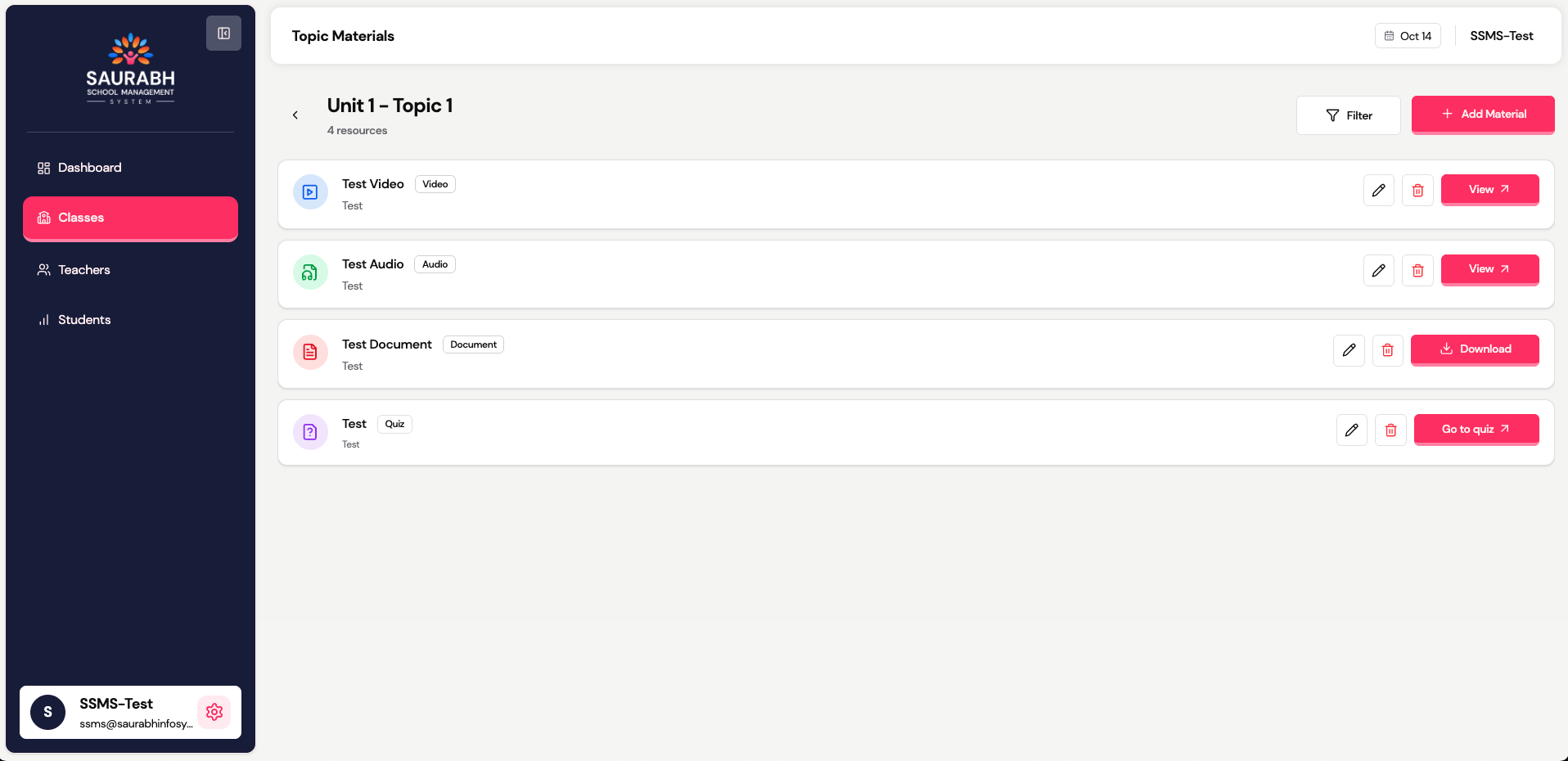
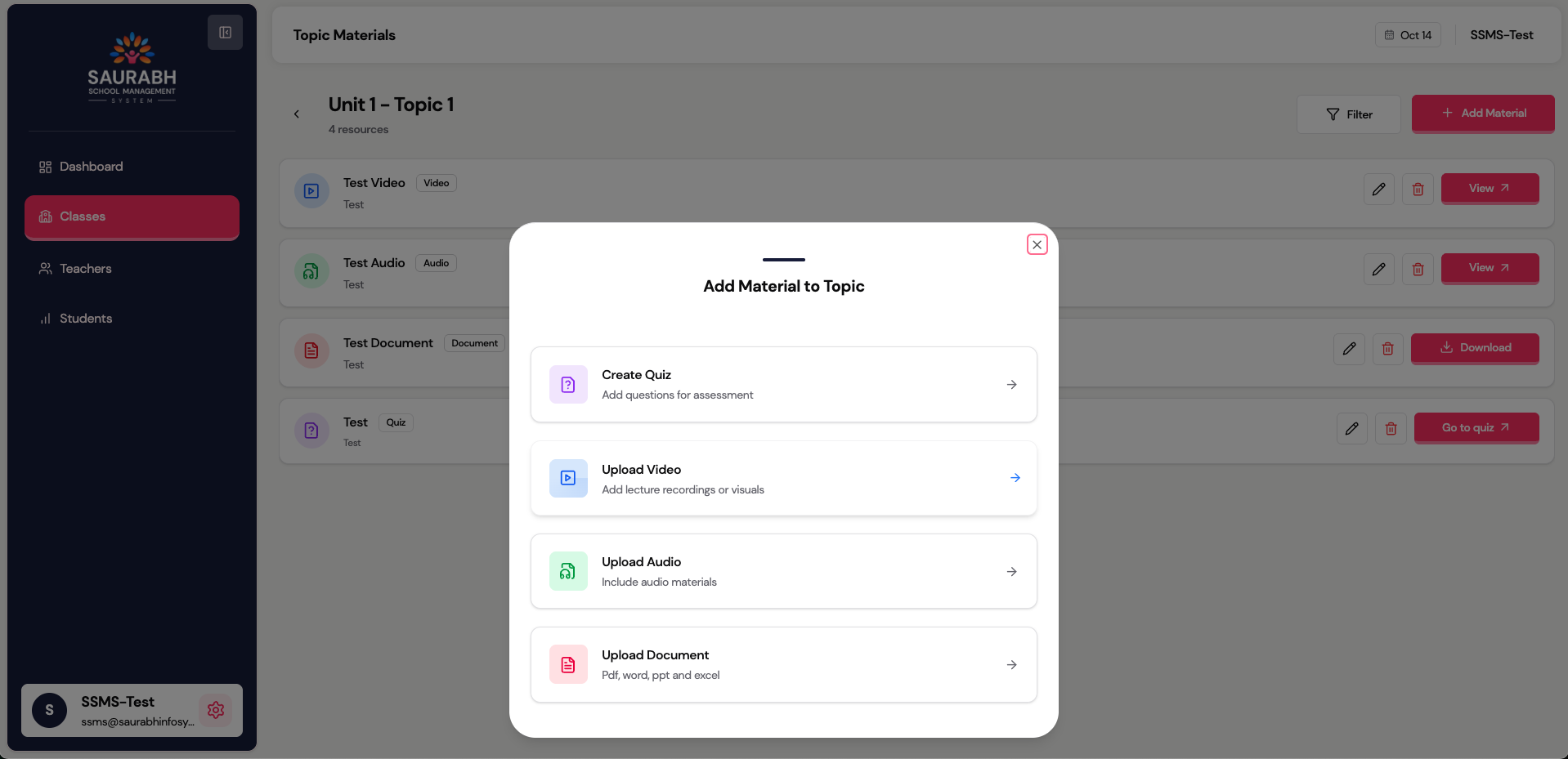
🎞️ Manage Materials & Quizzes
- Add materials (Video/Audio/PDF/Link) under a Topic
- Add quizzes for each topic
- Preview and test before publishing
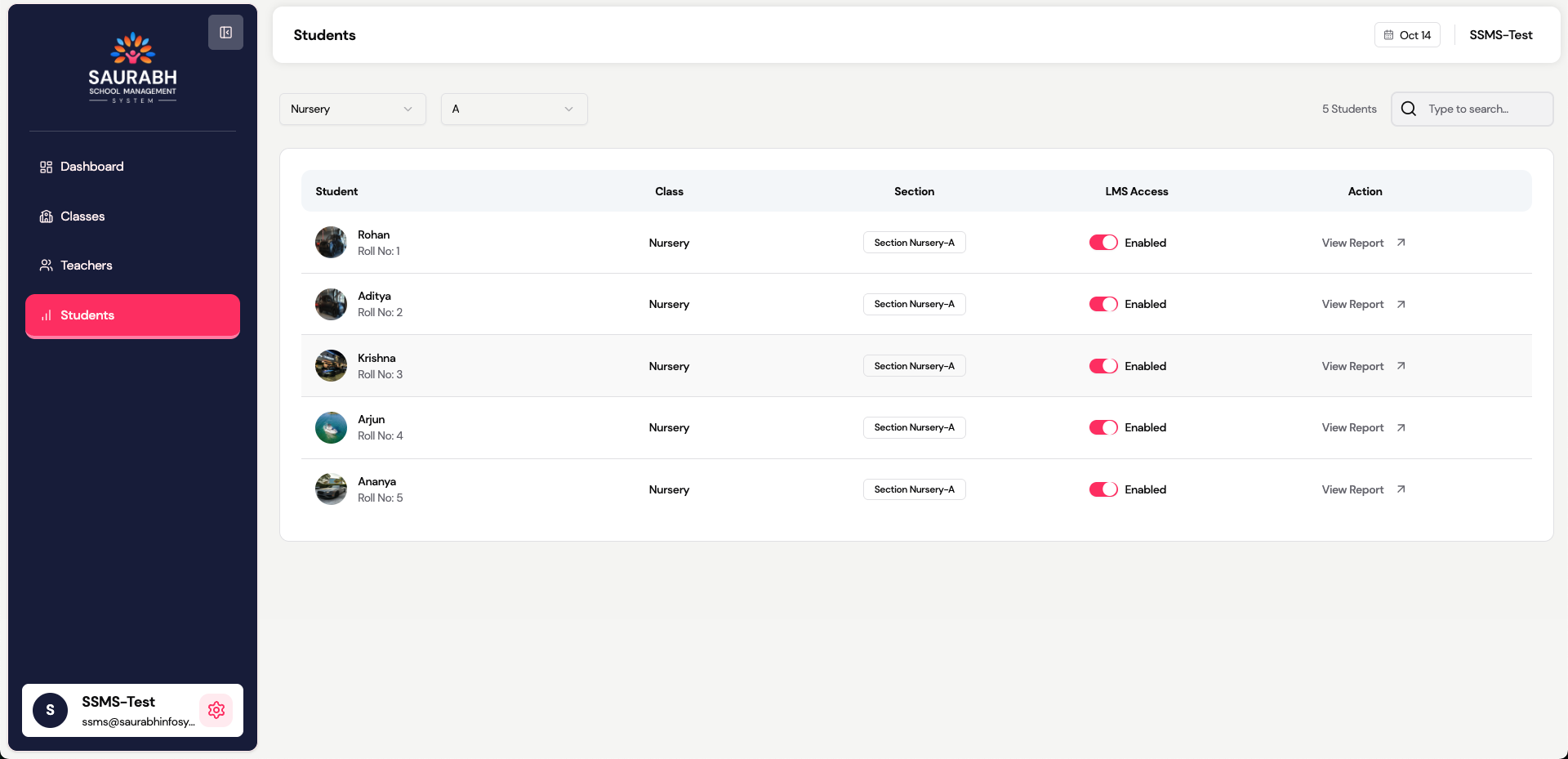
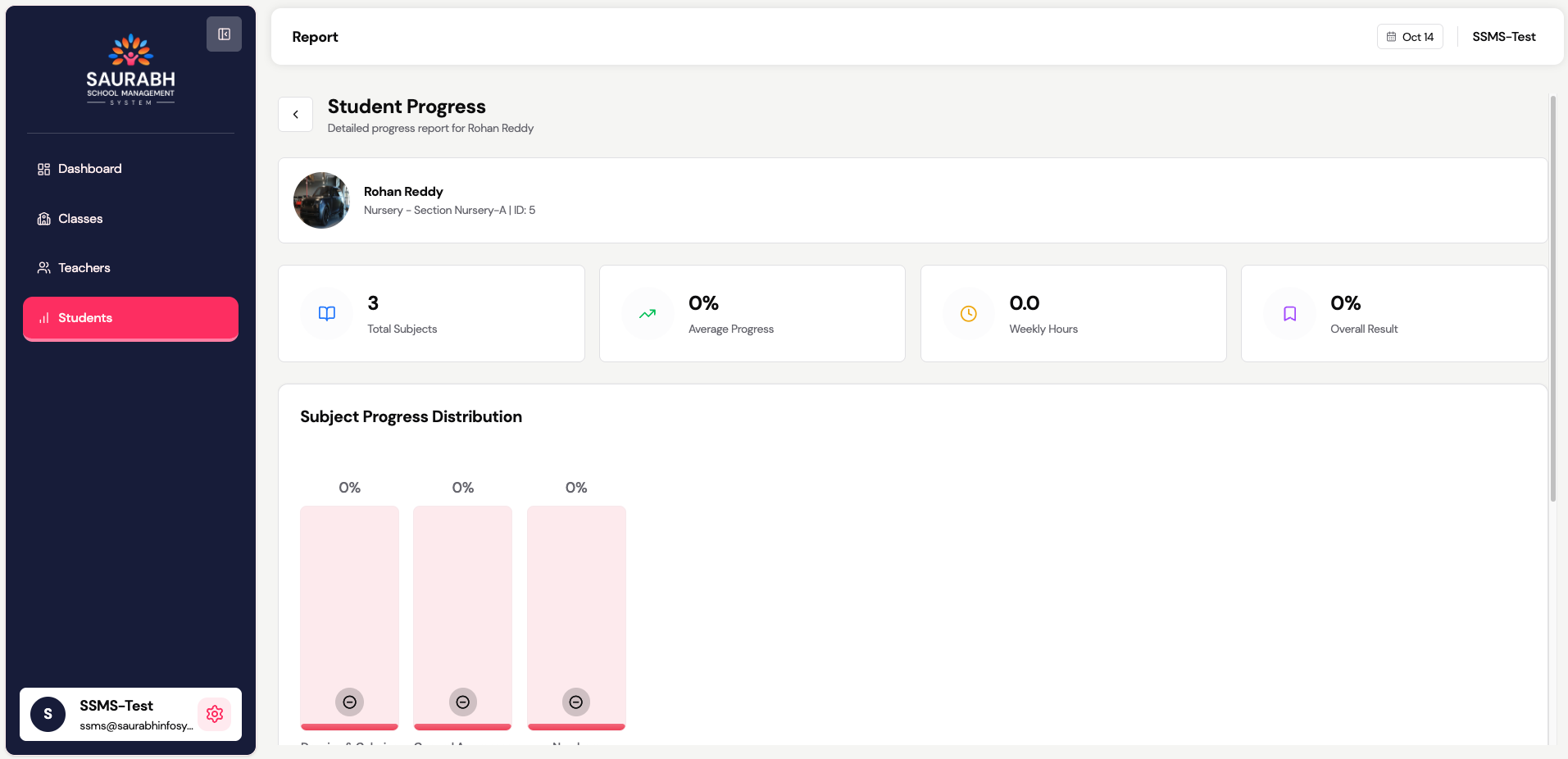
📈 Student Reports
Path: Reports → Students
- Filter by Class & Section
- View individual student progress
- Check completion %, average score, and time spent and more.
✅ Best Practices
- Enable LMS Access before term start
- Maintain subject–teacher mapping
- Use short, clear unit/topic names
- Keep file sizes below 300MB