Parents App – User Guide
Introduction
Parents App ka use parents ke liye design kiya gaya hai jisse wo apne child ki academic activities,attendance, tests,homework, notices, aurfees/payments ko easily track kar sakte hain – ek hi jagah par.
1. Login Process
The Parents App uses a secure OTP-based login system.
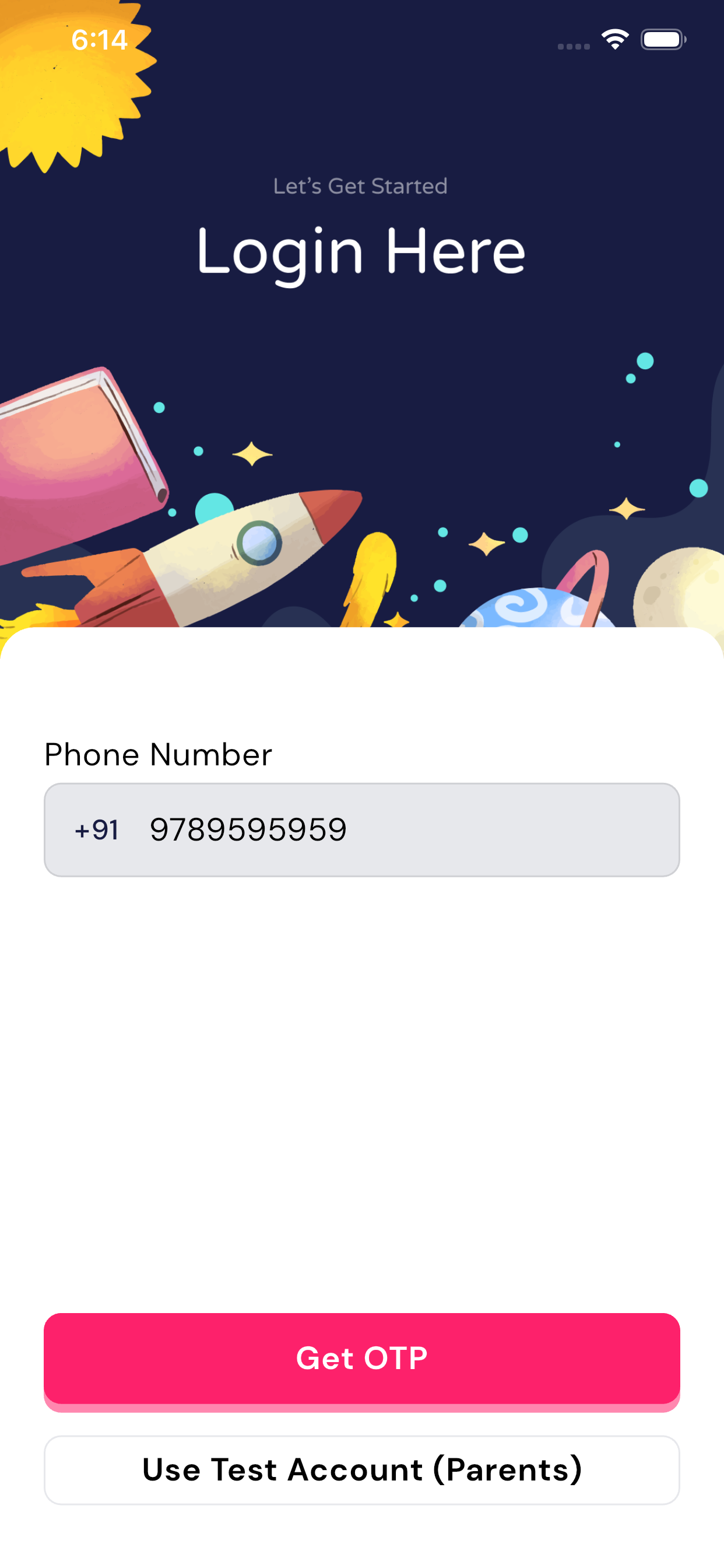
Step 1: Enter Registered Mobile Number
- Open the Parents App on your mobile phone.
- On the login screen, enter themobile number that was provided to the school at the time of your child’s admission.
- Click on the Get OTP button.
Step 2: Verify OTP
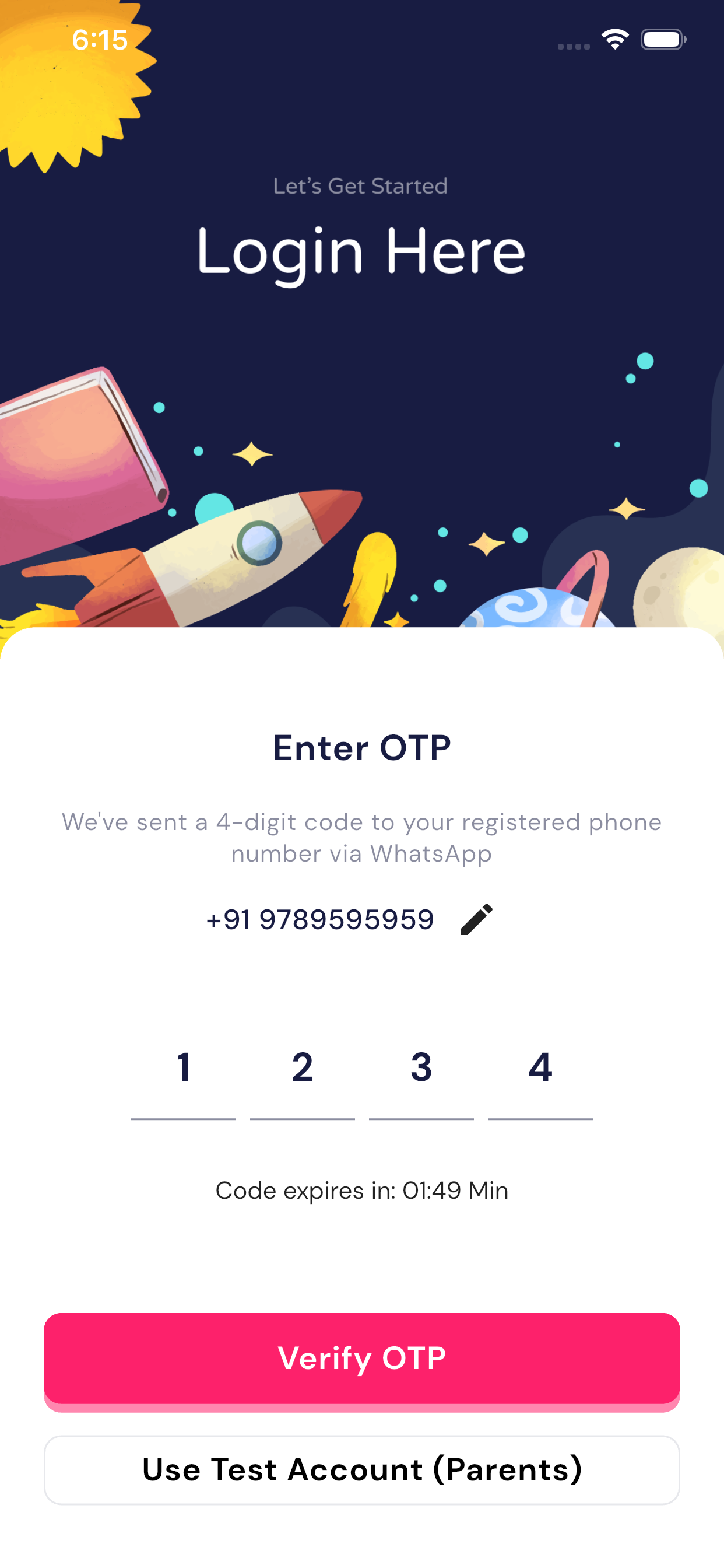
- A 4-digit OTP will be sent to your registered mobile number via WhatsApp.
- Enter the received OTP in the OTP input fields.
- Click on Verify OTP.
Once the OTP is verified successfully, you will be logged into the app.
2. Parent Dashboard
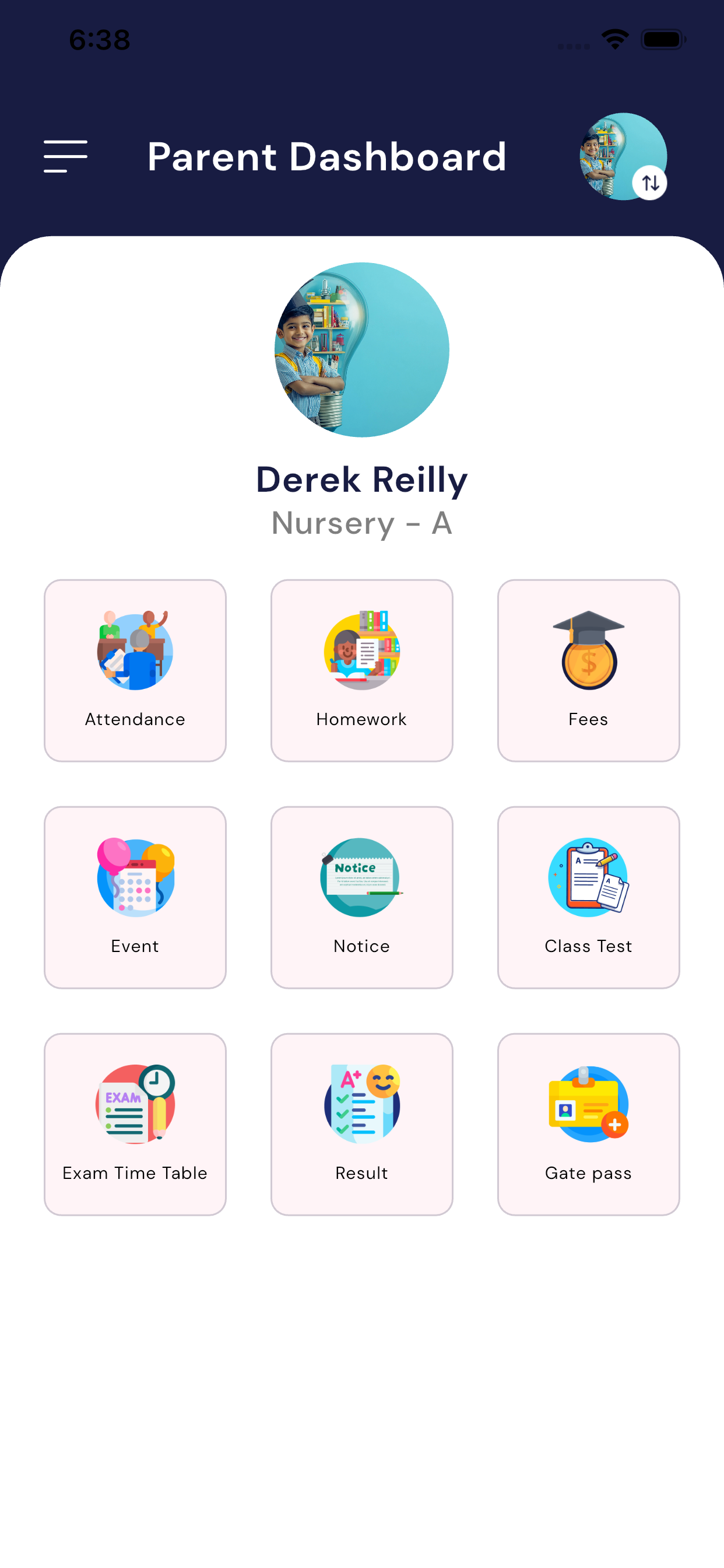
After successful login, the Parent Dashboard will be displayed. This dashboard shows your child’s basic information such as:
- Student Name
- Class and Section
From the dashboard, parents can access all important academic and school-related information.
3. Dashboard Features
2.1 Profile Switch (Multiple Children)
If a parent has more than one child studying in the same school, the Parents App allows the parent toswitch between children profiles easily using the Profile button.
What is the Profile Switch Feature?
The Profile Switch feature lets parents:
- View information for each child separately
- Check attendance, homework, results, fees, and notices for the selected child
What Changes After Switching Profile?
After switching the profile:
- Dashboard updates to the selected child
- Attendance, homework, results, fees, and all data shown will belong to that child
- You can switch back anytime using the same profile button
2.2Attendance
Overview
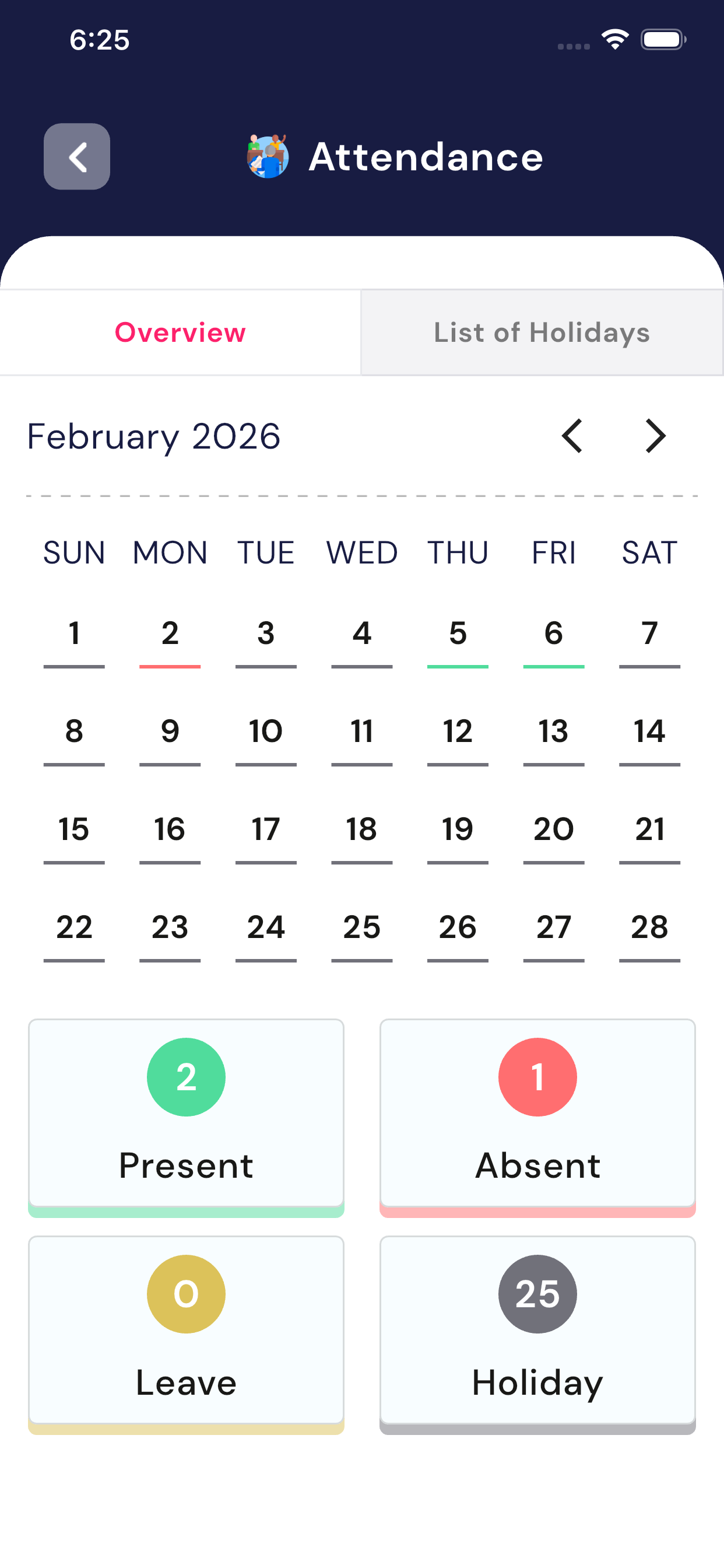
The Attendance Module allows parents to view their child’s daily attendance record. Parents can easily check whether their child was Present, Absent, on Leave, or if the day was aHoliday, along with a monthly summary.
Attendance Screen Explanation
1. Overview Tab
This tab shows the monthly attendance details in a calendar view.
Features:
- Month & Year Display
- The current month and year (e.g., February 2026) are shown at the top.
- Parents can switch months using theleft and right arrows.
- Calendar View
- Each date represents your child’s attendance status.
- Different color indicators are used for easy understanding:
- Green – Present
- Red – Absent
- Yellow – Leave
- Grey – Holiday
- Attendance Summary Cards
At the bottom of the screen, a summary is displayed:
- Present – Total days your child was present
- Absent – Total days your child was absent
- Leave – Total approved leave days
- Holiday – Total holidays in the selected month
This helps parents quickly understand the attendance performance for the month.
2. List of Holidays Tab
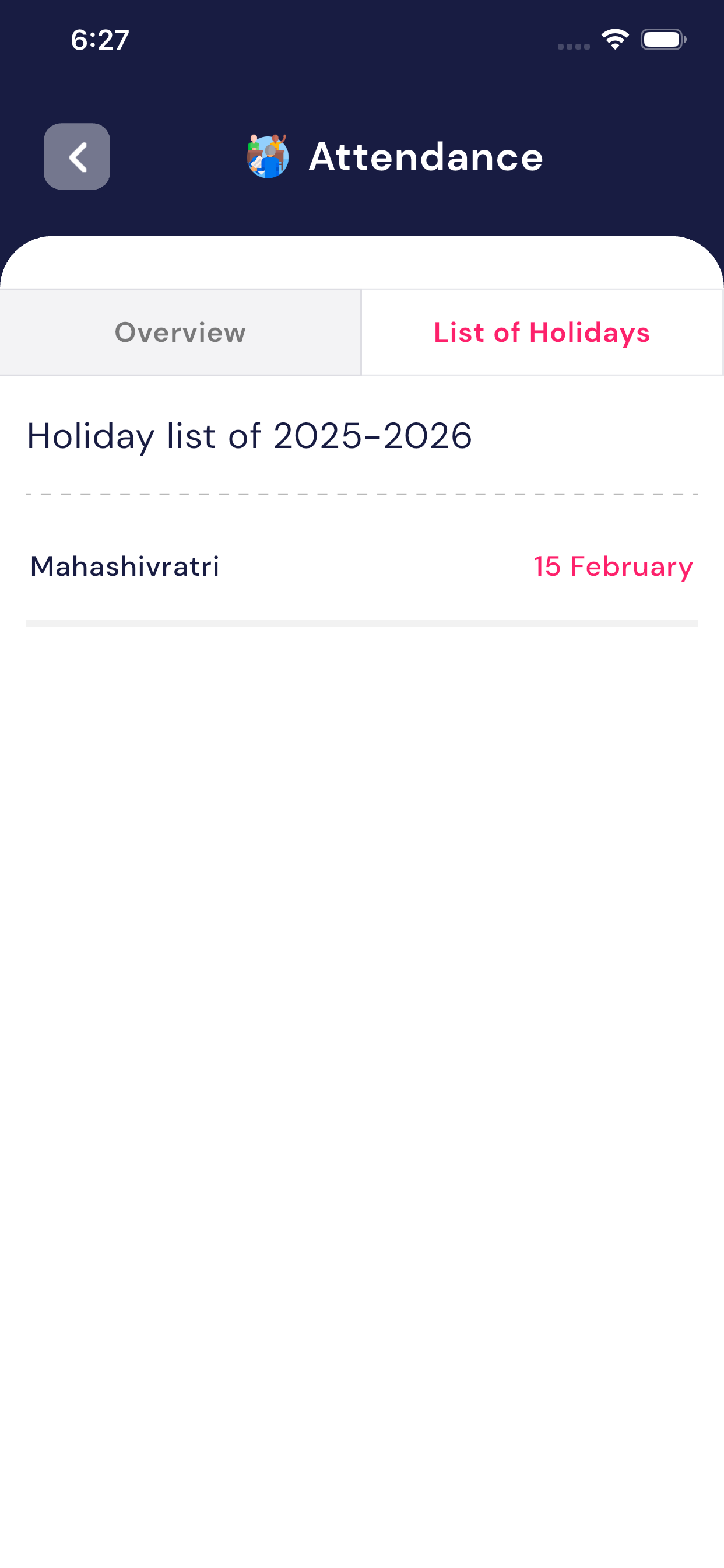
This tab shows the official school holiday list.
Features:
- Displays the academic year holiday list (e.g.,2025–2026).
- Shows all school-declared holidays with relevant dates.
- If no holidays are scheduled, a message such as
“There are currently no holidays scheduled” will be shown.
Key Benefits for Parents
- Easy tracking of daily and monthly attendance
- Clear visibility of holidays planned by the school
- Helps parents stay informed about their child’s regularity
- Simple and user-friendly design for quick understanding
2.3 Homework
The Homework Module allows parents to view daily homework assigned to their child, track upcoming tasks, and review completed homework in a simple and organized manner.
2. Homework Tabs Overview
a) Today
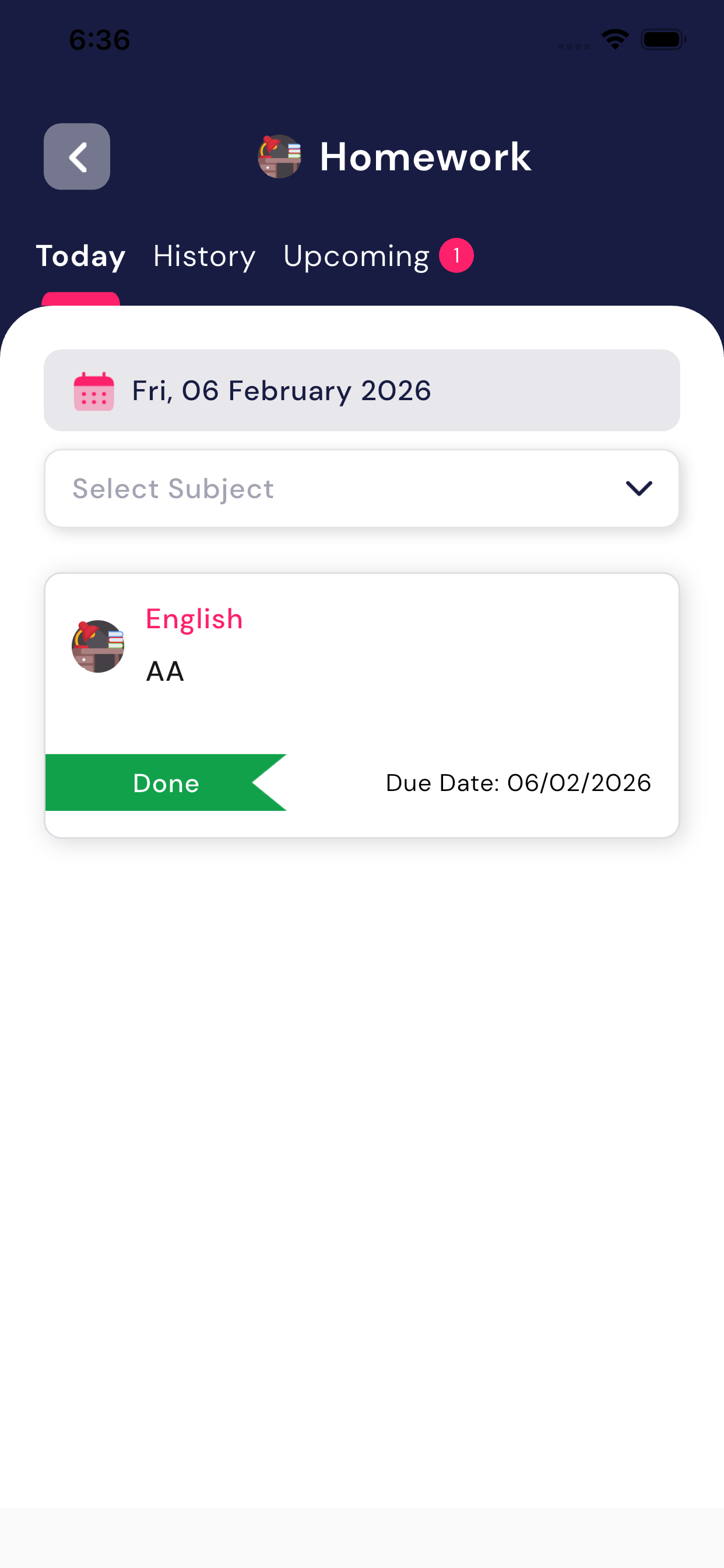
- Displays homework assigned for the current date.
- Homework is grouped by subject.
- Each homework card shows:
- Subject name
- Homework title
- Due date
- Status (e.g., Done)
This helps parents quickly check what work is assigned for today.
b) Upcoming
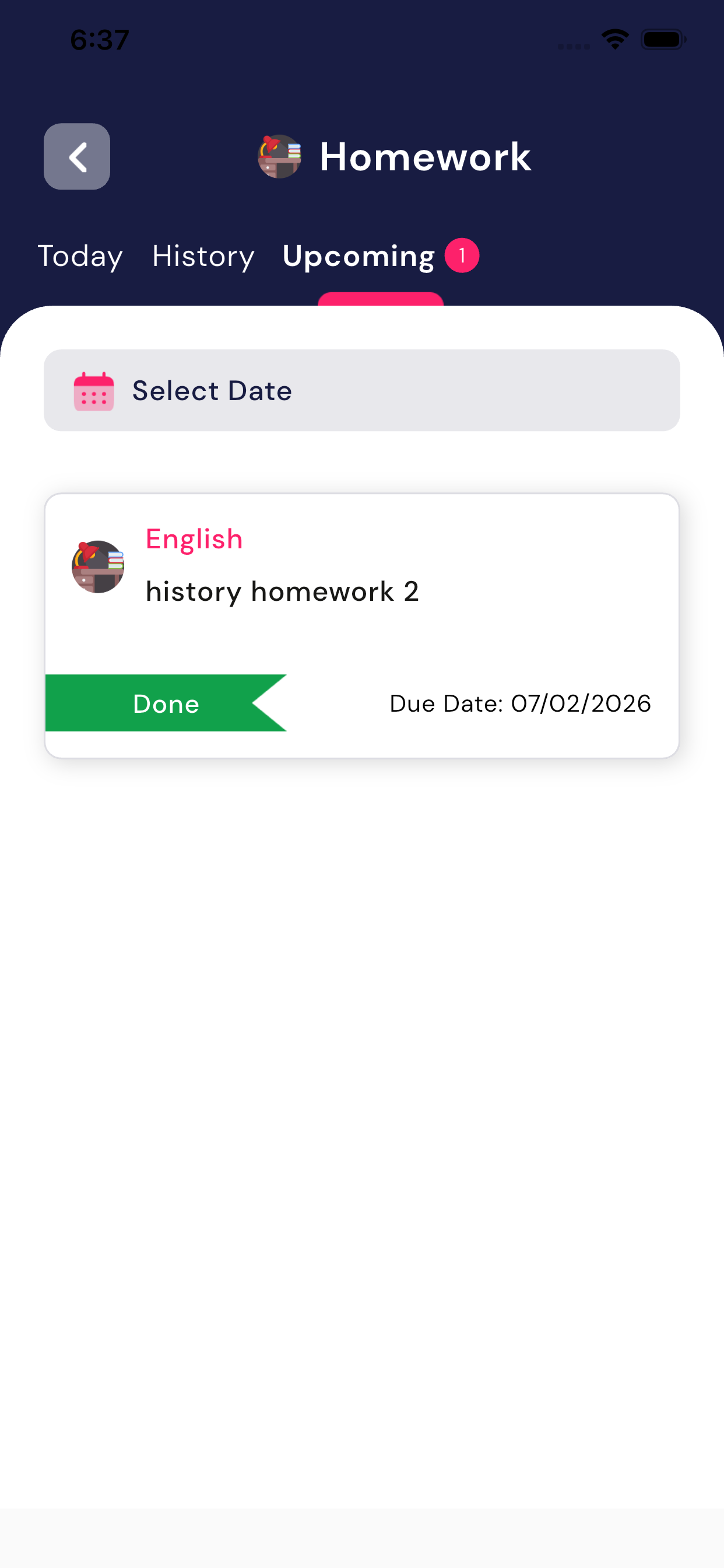
- Shows homework that isscheduled for future dates.
- A notification badge indicates the number of upcoming homework items.
- Parents can plan ahead and remind children about upcoming tasks.
c) History
- Displays past homework.
- Useful for reviewing previously assigned and completed homework.
3. Date and Subject Filter
- Parents can select a specific date using the calendar option.
- Homework can also be filtered by subject using the “Select Subject” dropdown.
- This makes it easy to find homework for a particular day or subject.
4. Homework Card Details
Each homework entry is displayed as a card containing:
- Subject (e.g., English)
- Homework Title
- Due Date
- Status
- Done indicates the homework has been completed.
Parents can tap on any homework card to view full details.
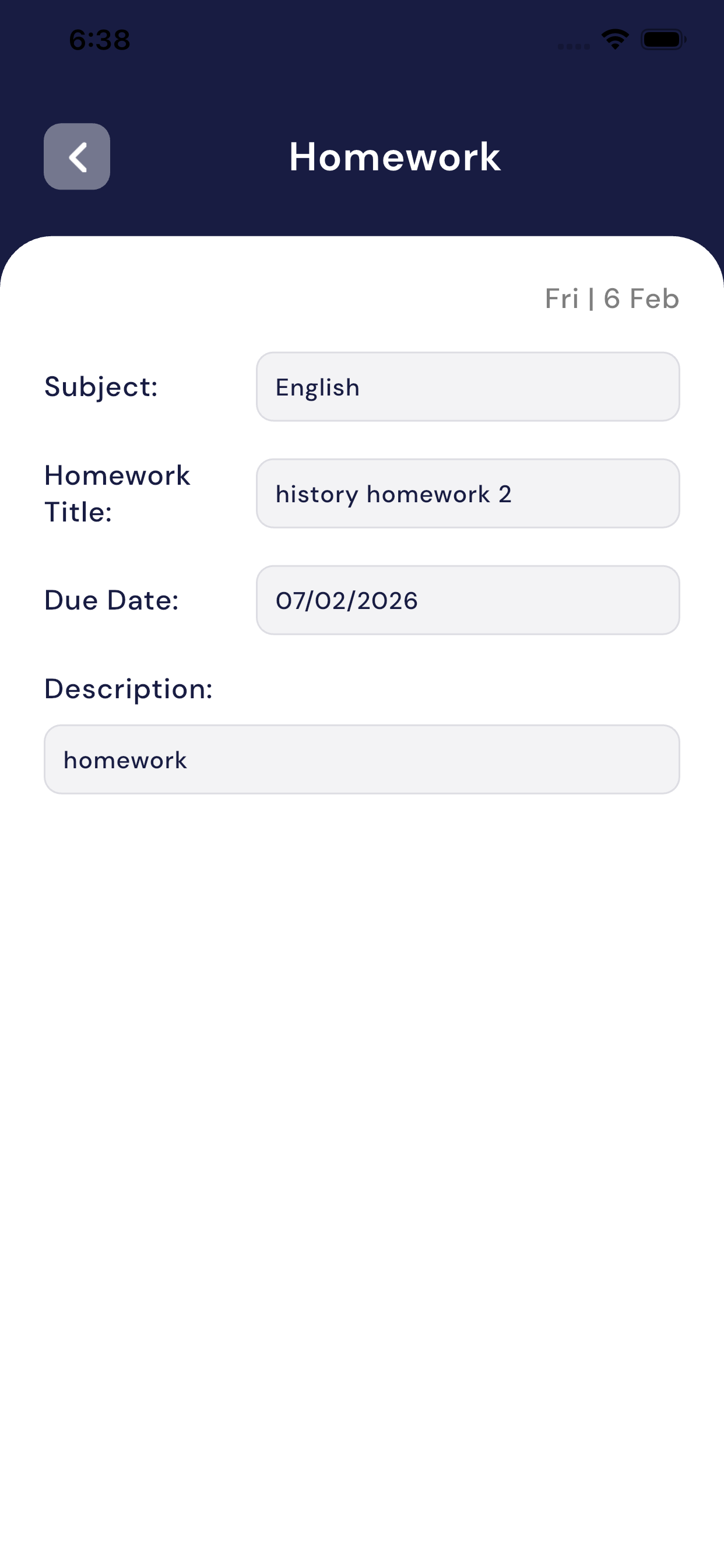
5. Homework Detail Screen
When a homework item is opened, the following information is shown:
- Subject
- Homework Title
- Due Date
- Description (instructions provided by the teacher)
This screen helps parents clearly understand what needs to be done and by when.
6. Homework Status
- Homework marked as Done indicates completion.
- Parents can easily track whether homework has been completed on time.
7. Key Benefits for Parents
- Clear visibility of daily and upcoming homework
- Easy tracking of homework completion
- Better planning and academic support for children
- Reduced chances of missed assignments
2.4 Fees module
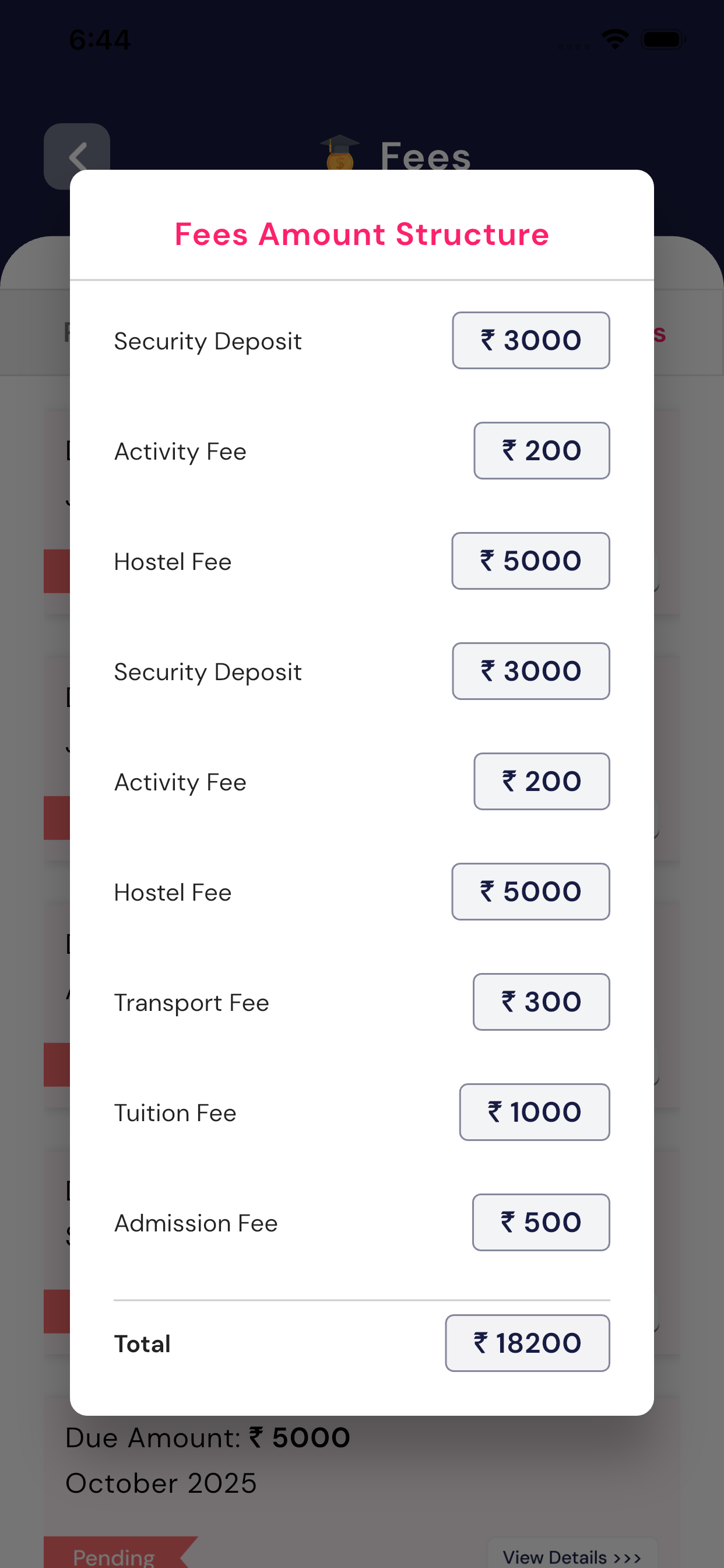
The Fees Module allows parents to easily track their child’s fee status, includingPaid, Pending, and Due fees.
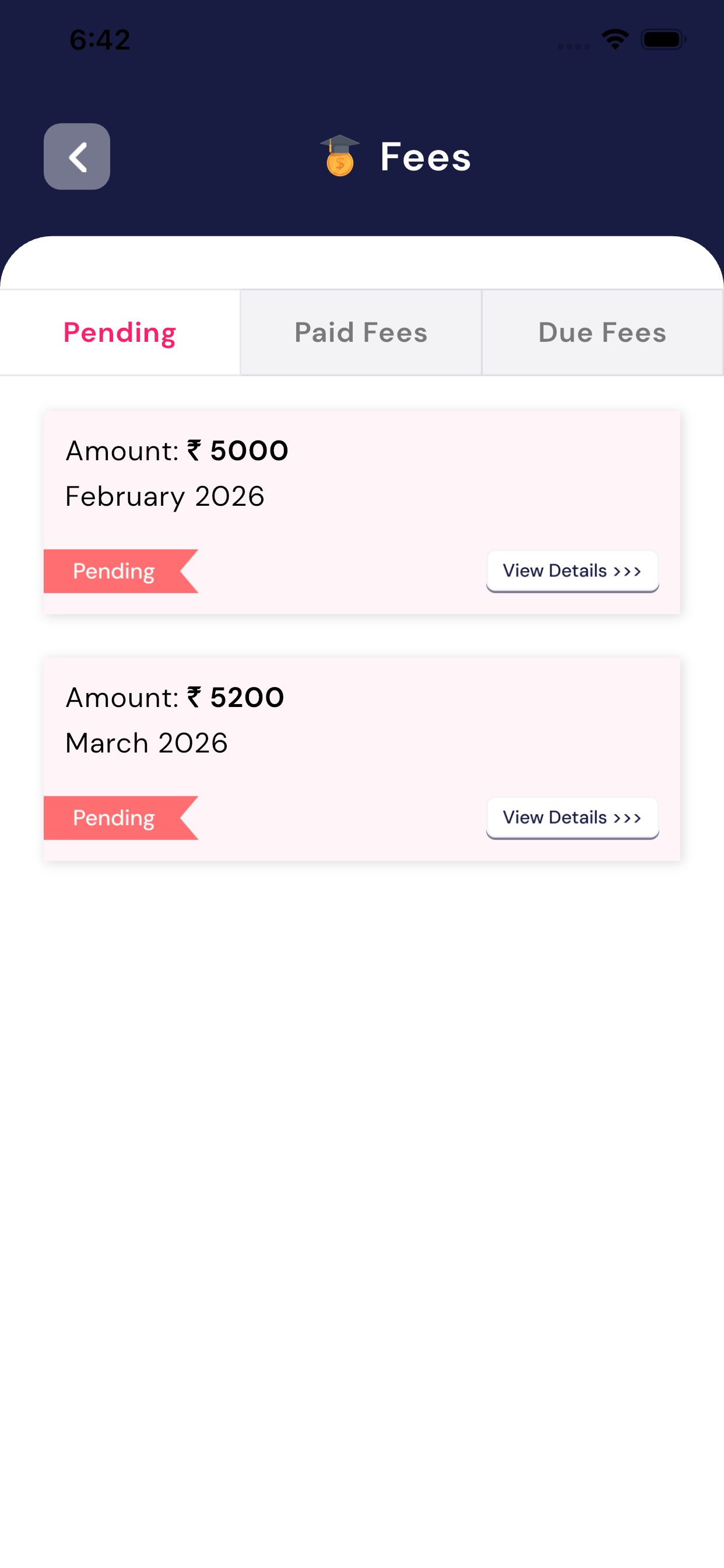
🕒 Pending Fees Tab
This tab shows the fees that are not yet paid and belong to upcoming months.
Information available in this tab:
- Fee Amount (₹)
- Month and Year
- Status: Pending
- View Details button to see complete fee information
Example:
- February 2026 – ₹5,000 (Pending)
- March 2026 – ₹5,200 (Pending)
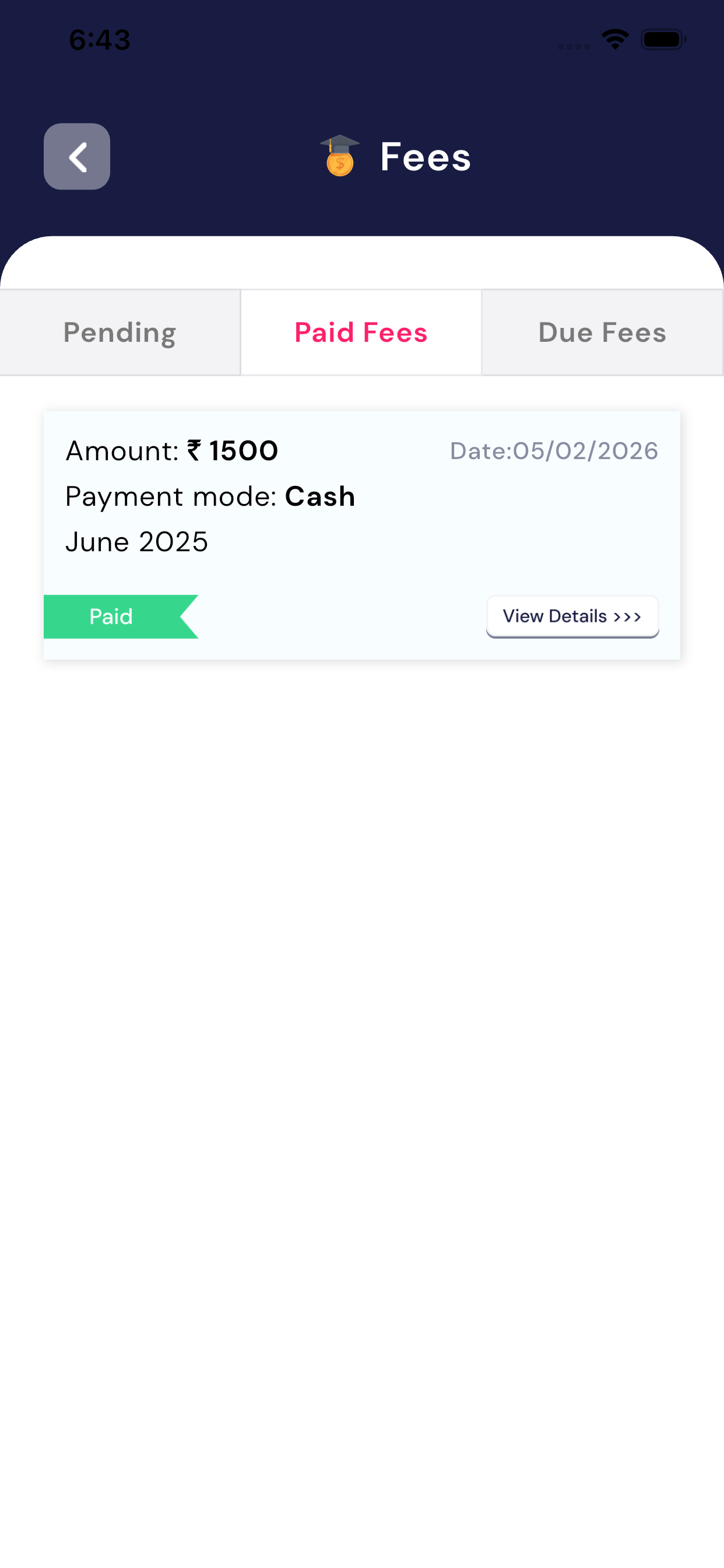
✅ Paid Fees Tab
This tab displays the fees that have already beensuccessfully paid by the parent.
Details shown in this tab:
- Paid Amount
- Payment Mode (Cash / Online)
- Payment Date
- Month and Year
- Status: Paid
- View Details button to check receipt or payment details
Example:
- June 2025 – ₹1,500
- Payment Mode: Cash
- Payment Date: 05/02/2026
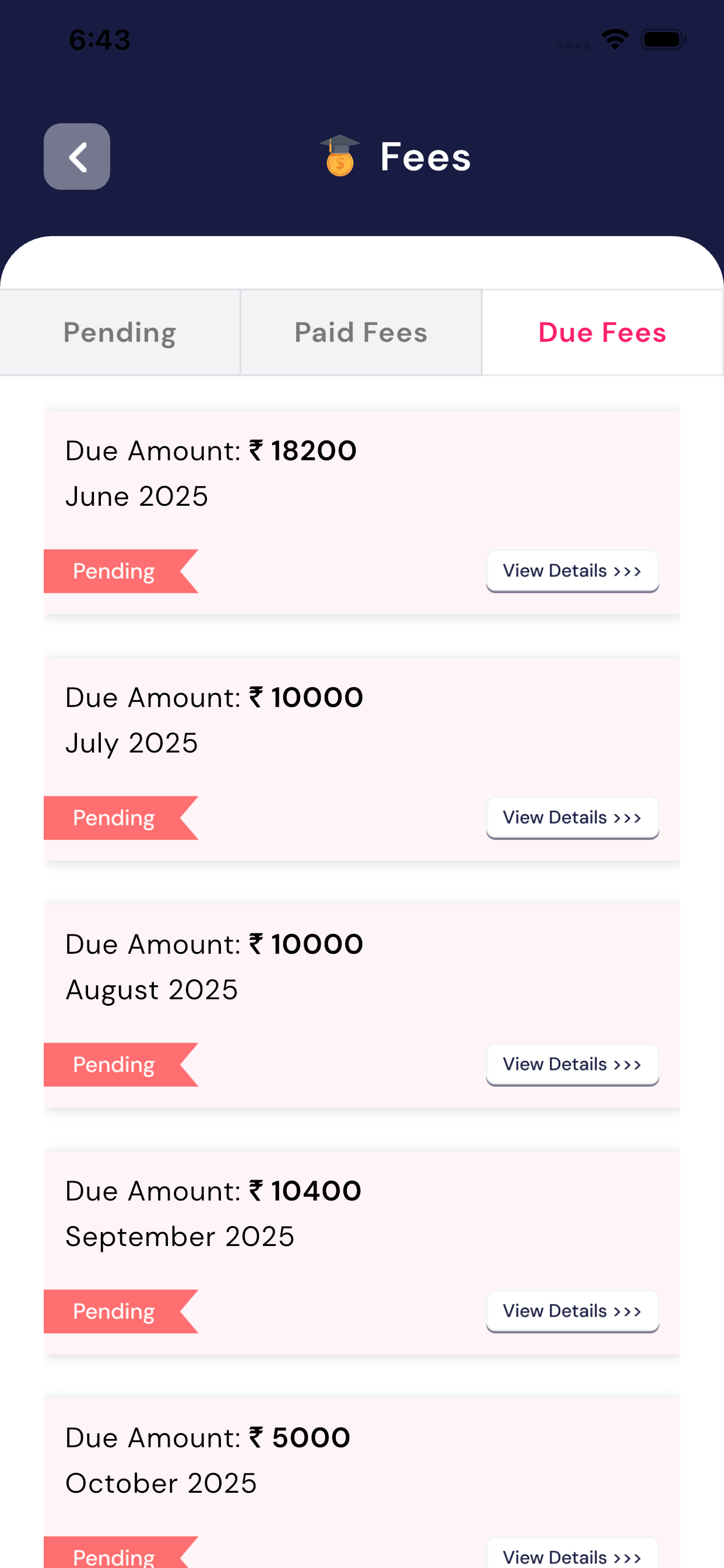
⚠️ Due Fees Tab
This tab shows the fees that are overdue (payment due date has passed and payment is still pending).
Information available in this tab:
- Due Amount
- Month and Year
- Status: Pending
- View Details button for complete breakdown
Example:
- June 2025 – ₹18,200 (Due)
- July 2025 – ₹10,000 (Due)
- August 2025 – ₹10,000 (Due)
🔍 View Details Button
The View Details >>> button is available on each fee card.
By tapping this button, parents can view:
- Fee breakdown
- Fine or late charges (if any)
- Payment history
🎯 Benefits of the Fees Module
✔ Easy tracking of child’s fees
✔ Clear visibility of Paid, Pending, and Due fees
✔ Helps parents avoid missed or late payments
✔ Complete fee history available at one place
2.5 Events Module
The Event Module helps parents stay updated about all school events related to their child. Using this module, parents can easily check today’s events,upcoming events, and past events, along with full event details.
1. Event Tabs Overview
The Event module is divided into three sections:
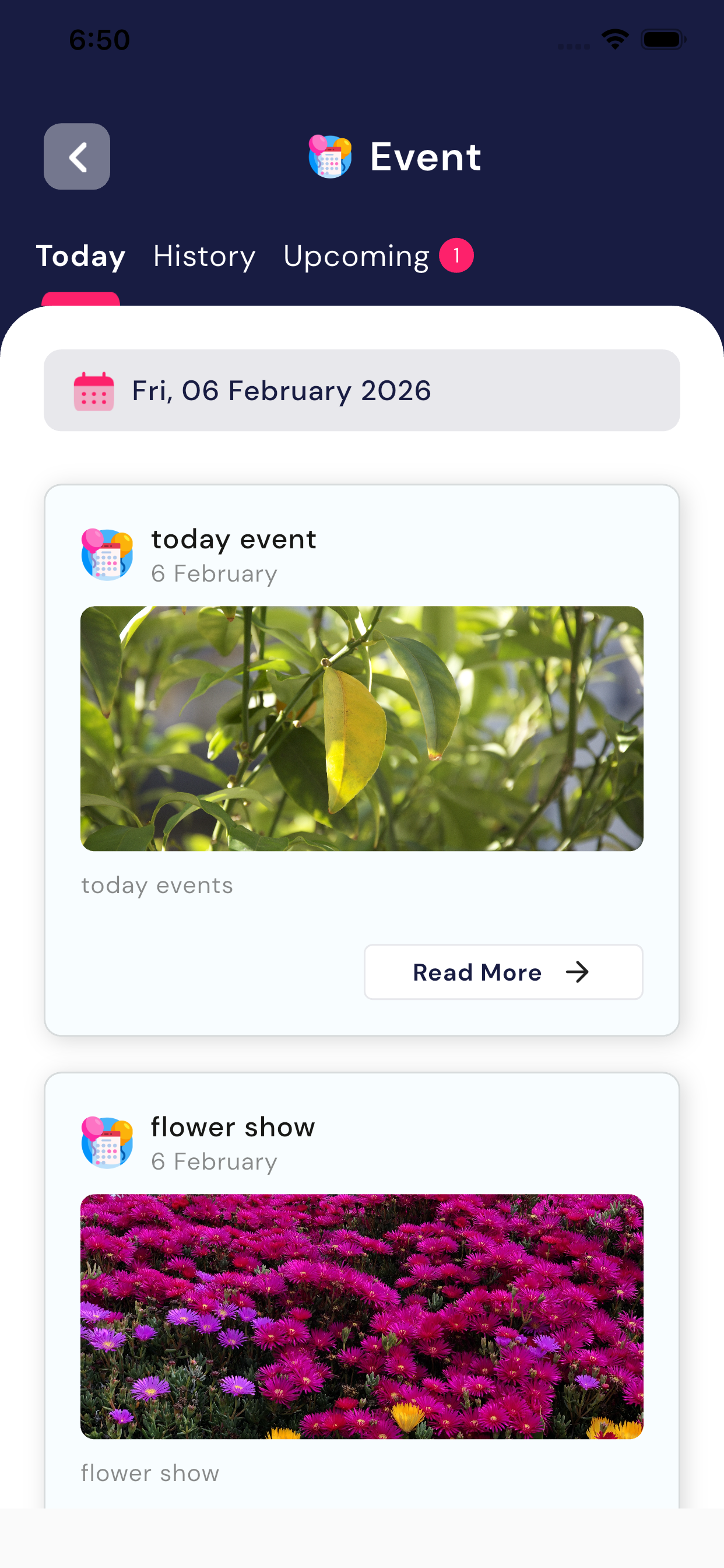
a) Today
- Shows all events happening today in the school.
- Parents can quickly see if there is any event scheduled for the current day.
- Each event card displays:
- Event name
- Event date
- Event image (if available)
- Tap Read More to view complete event details.
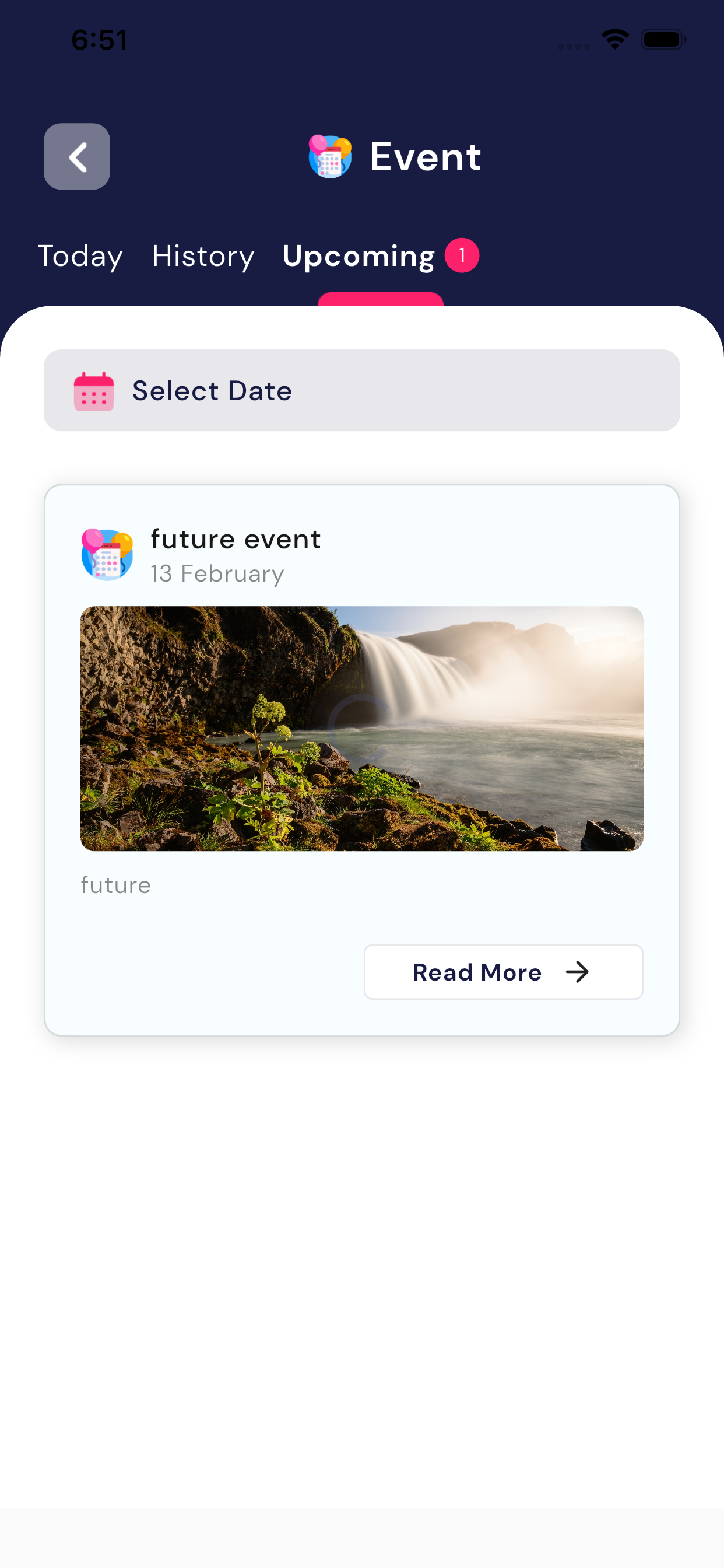
b) Upcoming
- Shows future events that are planned by the school.
- Parents can prepare in advance for upcoming activities, programs, or celebrations.
- You can:
- View events by date
- Use Select Date to check events on a specific day
- Each event card includes:
- Event name
- Event date
- Event image
- Tap Read More to see full details.
c) History
- Shows completed events from the past.
- Parents can check which school events have already taken place.
- Useful for tracking participation and school activities.
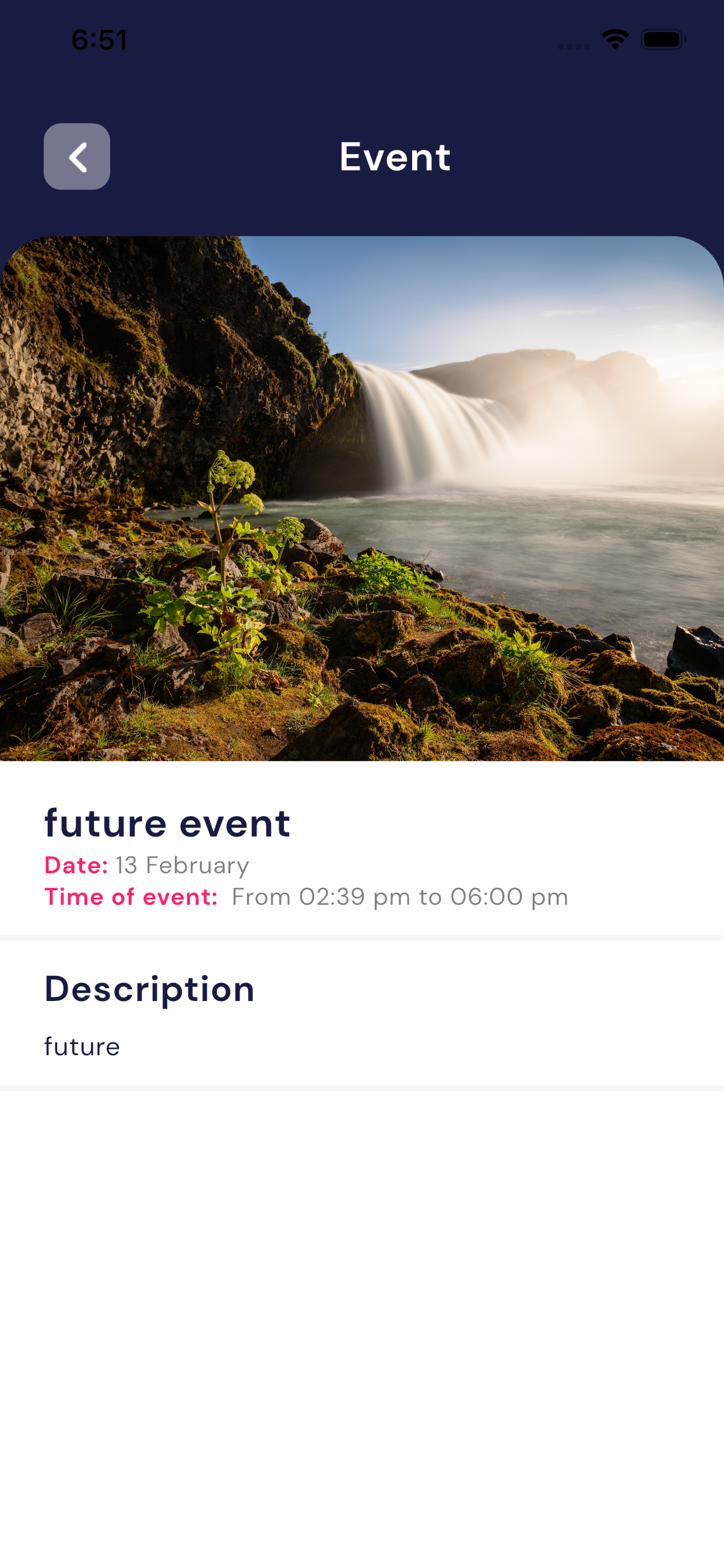
2. Viewing Event Details
When a parent taps on Read More, the Event Details screen opens.
This screen shows complete information about the selected event, including:
- Event Name
- Event Date
- Event Time (start time to end time)
- Event Image
- Event Description
This helps parents clearly understand the purpose and schedule of the event.
3. Benefits for Parents
- Stay informed about all school activities
- Never miss important school events
- Easy tracking of past, present, and future events
- Clear and organized event information in one place
2.6 Notice Module
The Notice Module helps parents stay informed about important school announcements shared by teachers and the school administration. All notices related to academics, fees, exams, holidays, and emergencies are available in one place.
Notice Tabs Explained
The Notice Module is divided into three tabs for easy tracking:
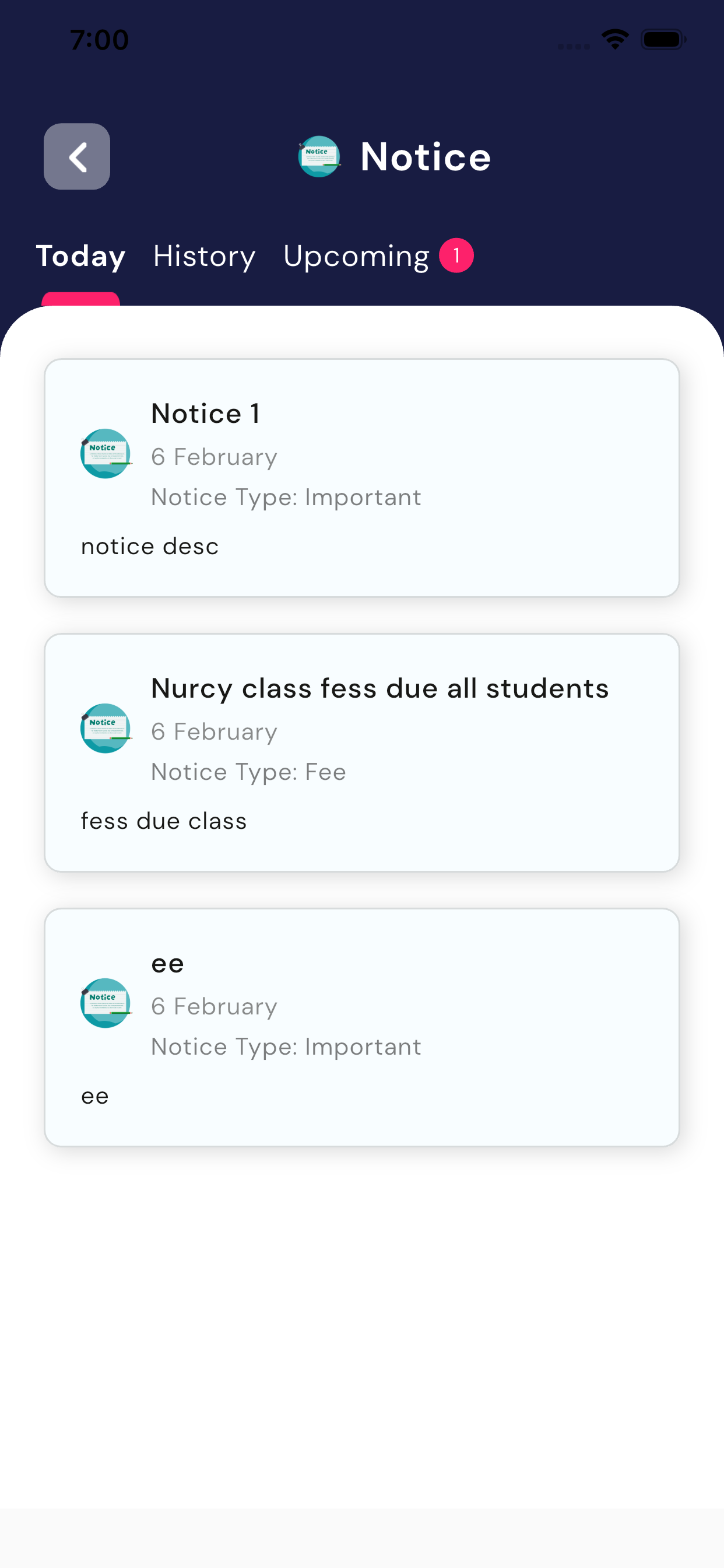
1. Today
- Shows notices published today.
- Parents can quickly check anynew or urgent updates shared by the school.
- Example:
- Important announcements
- Fee-related notices
- Emergency information
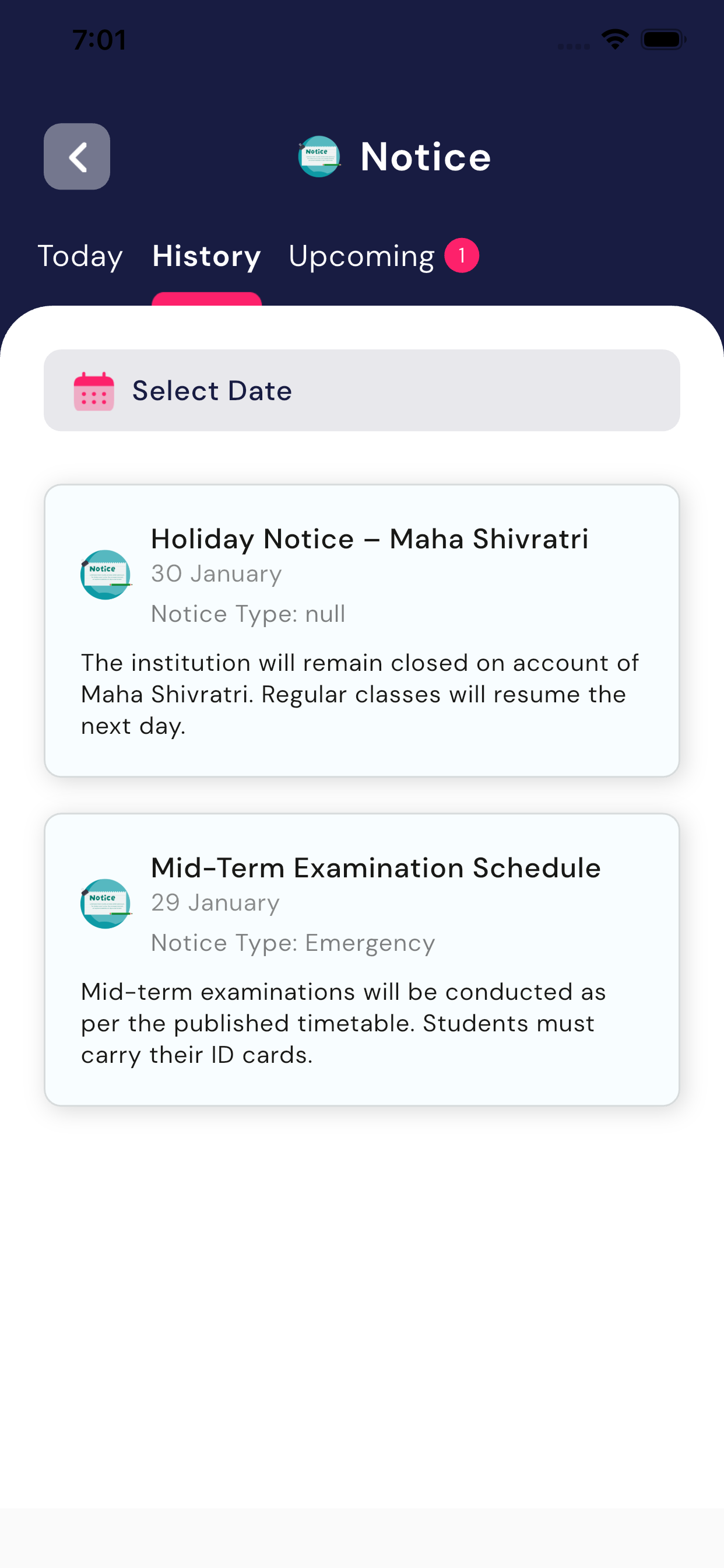
2. History
- Displays past notices that were shared earlier.
- Parents can reviewprevious announcements anytime.
- A date filter may be available to search notices by a specific date.
- Useful for checking:
- Old exam schedules
- Past holiday notices
- Previous instructions
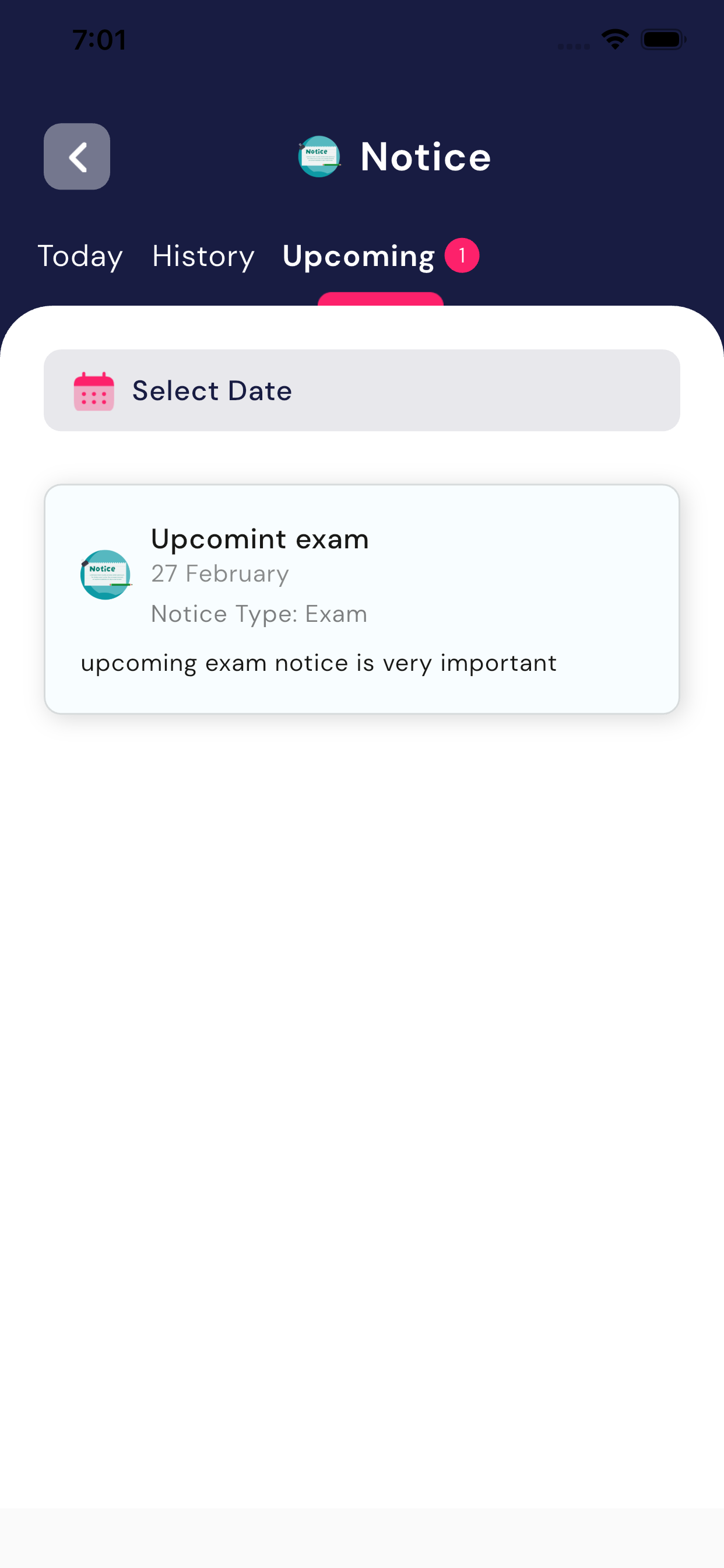
3. Upcoming
- Shows future notices that are scheduled in advance.
- Helps parents prepare for:
- Upcoming exams
- Planned holidays
- Future school events or activities
Understanding a Notice Card
Each notice card shows the following details:
- Notice Title – Short heading of the notice
- Date – When the notice was published or scheduled
- Notice Type – Such as Important, Exam, Fee, Emergency, etc.
- Description – Detailed information about the notice
Parents can read all details directly from the notice card.
Benefits of the Notice Module
- Keeps parents updated with school communication
- Reduces missed information
- Provides one central place for all announcements
- Helps parents stay prepared for exams, fees, and school activities
Important Points to Remember
- Notices are read-only for parents.
- All notices are posted by teachers.
- Parents should check the Notice Moduleregularly for updates.
2.7 Class Test
The Class Test module helps parents stay informed about their child’s tests, schedules, and results in one place.
What is the Class Test Module?
The Class Test module displaysall class tests conducted for your child, along with their test details and results (once marks are updated by the teacher).
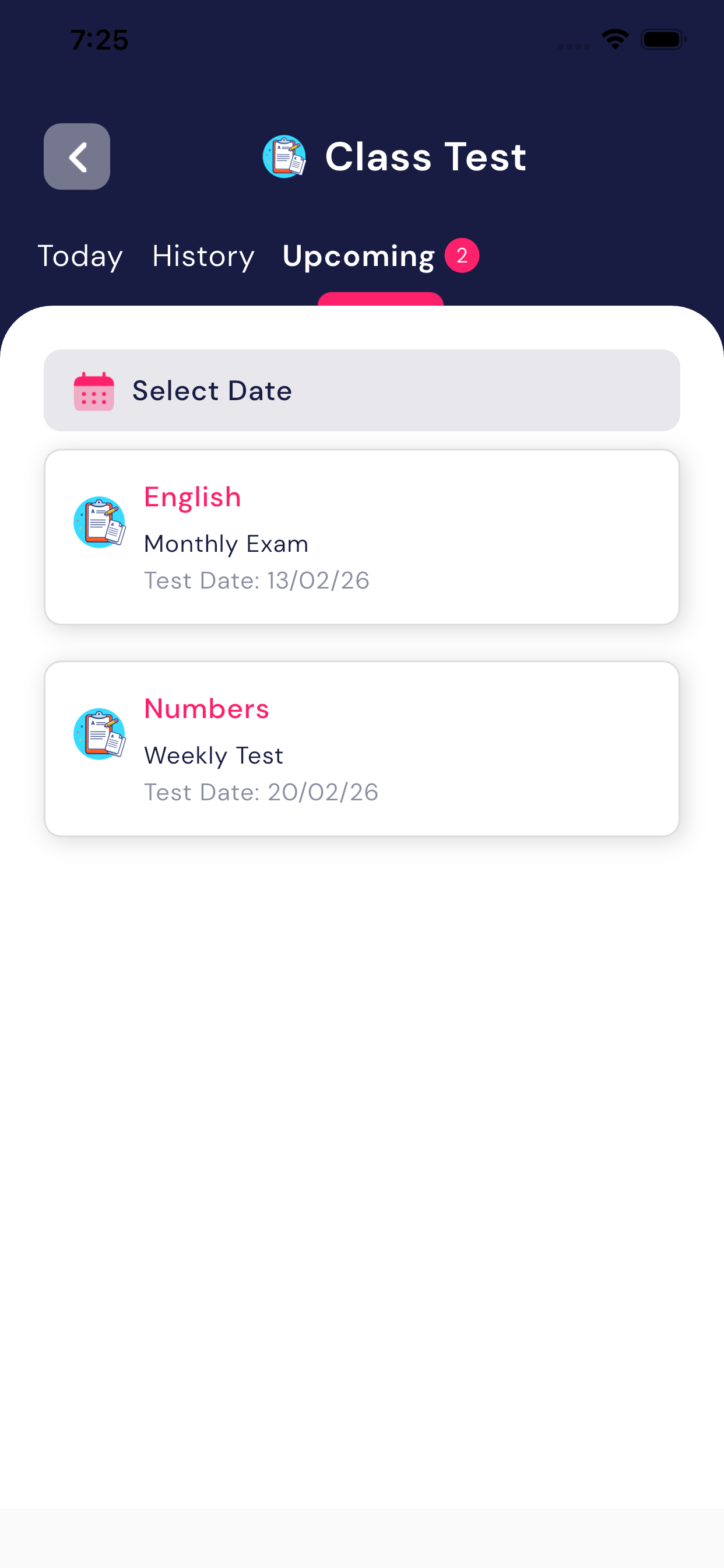
Class Test List Screen
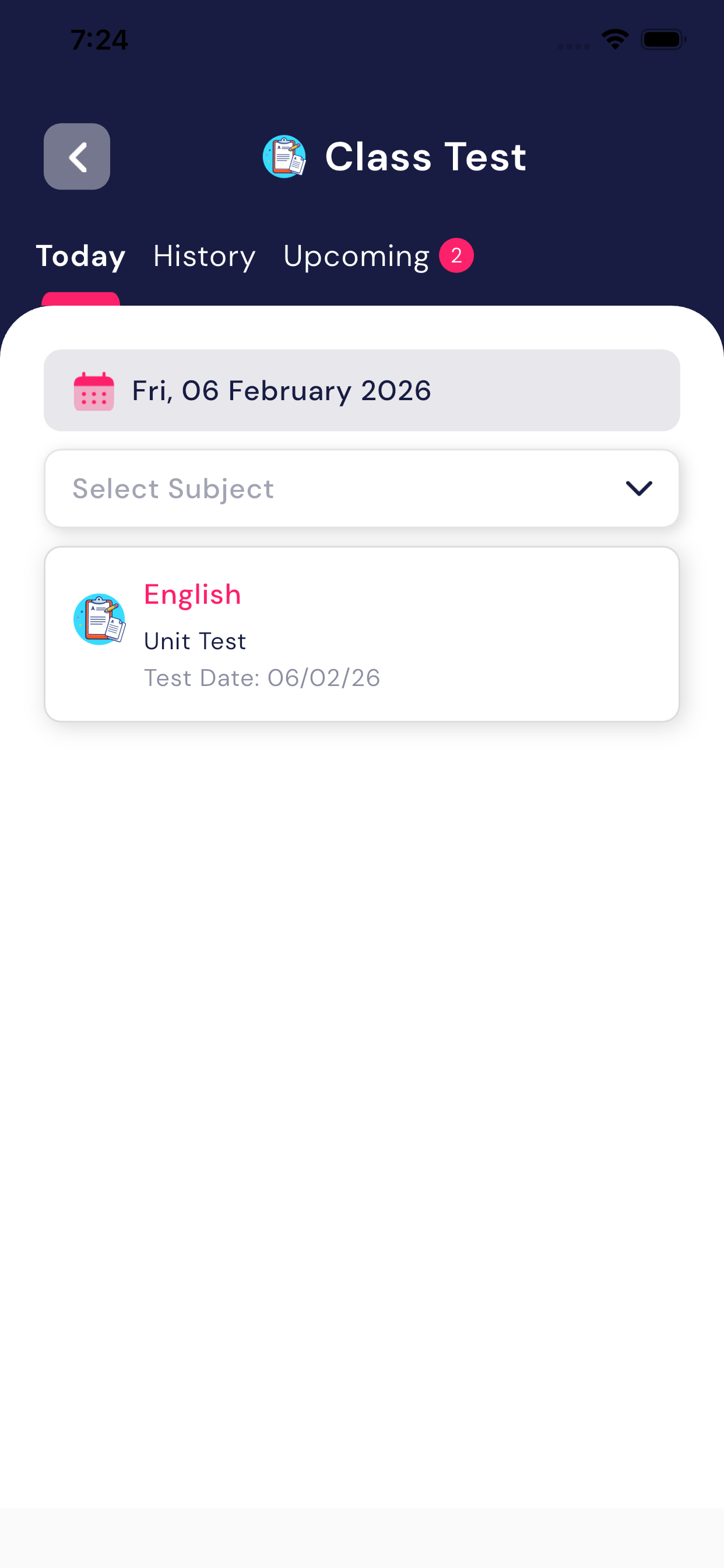
On the main Class Test screen, parents can see:
- A list of all class tests for the child
- Tests are grouped by date
- Each test card shows:
- Subject name (e.g., English, Numbers)
- Test type (Unit Test, Weekly Test, Monthly Exam)
- Test date
Parents can switch between:
- Today – Tests scheduled for today
- History – Past tests
- Upcoming – Future tests
Viewing Class Test Details
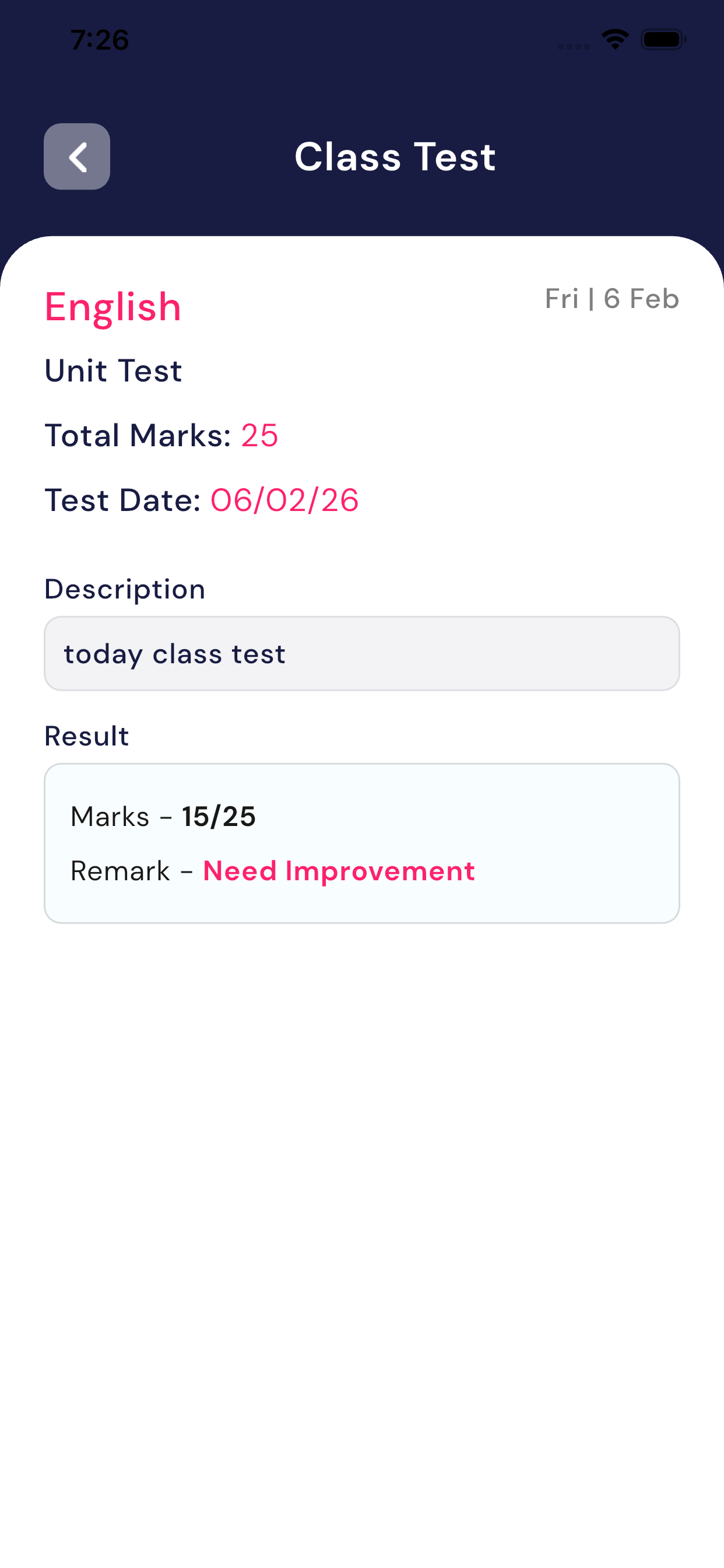
When you tap on any class test, theClass Test Detail screen opens.
This screen shows:
- Subject (e.g., English)
- Test Type (Unit Test / Weekly Test / Monthly Exam)
- Total Marks
- Test Date
- Test Description (if provided by the teacher)
Viewing Test Results
If the school has updated the marks, theResult section will be visible.
The Result section includes:
- Marks obtained (e.g., 15/25)
- Teacher’s remark (e.g.,Need Improvement, Good, Excellent)
👉 This helps parents understand the child’s performance clearly.
If Marks Are Not Updated
- If the teacher has not updated the test marks, the Result section will not be shown
- Parents will only see the test details
- Results will automatically appear once the school updates the marks
Why This Module Is Useful for Parents
- Keeps track of all class tests in one place
- Helps parents monitor academic progress
- Reduces the need to ask teachers for test updates
- Ensures transparency between school and parents
2.8 Exam Time Table
The Exam Time Table module helps parents view their child’s complete examination schedule along with important exam details.
What is the Exam Time Table Module?
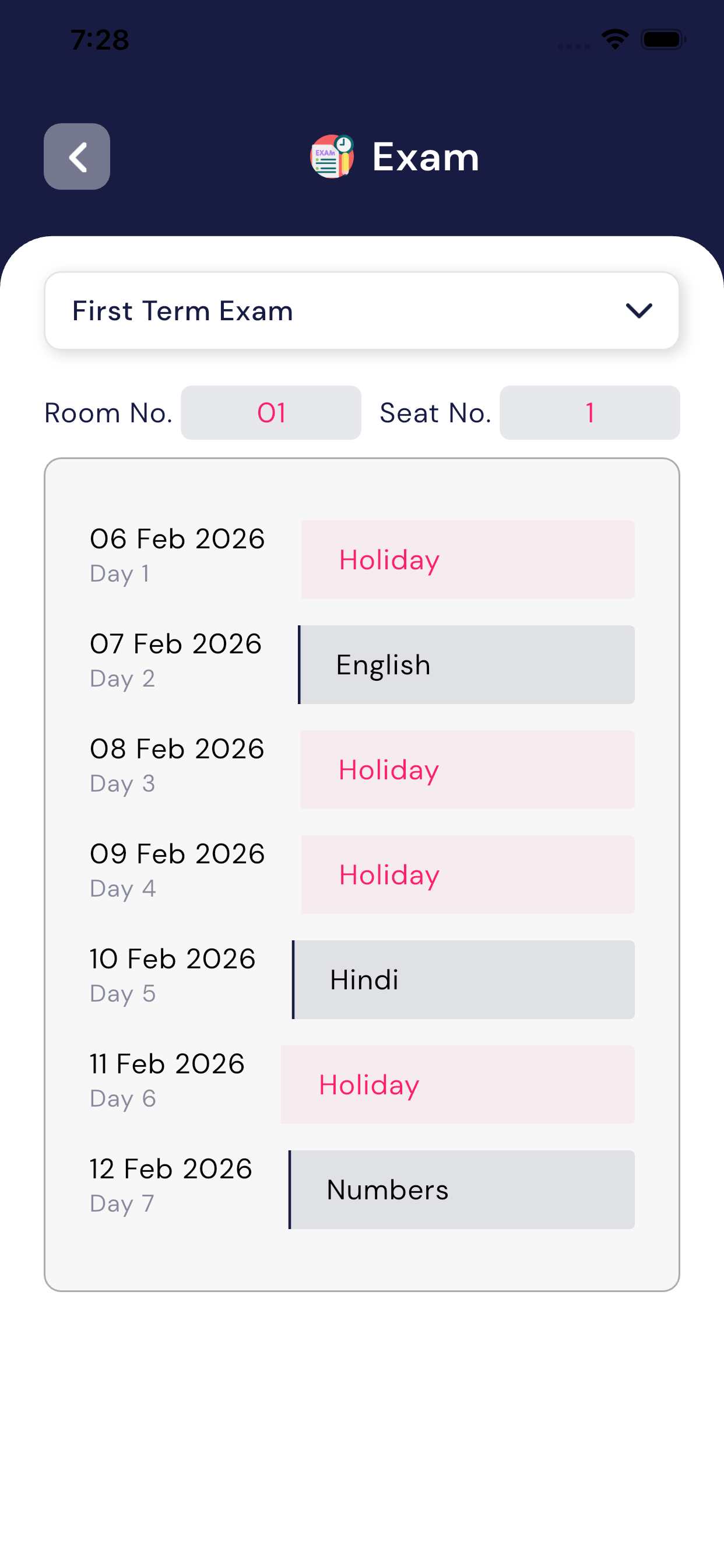
This module displays theexam schedule of the selected exam term (such as First Term Exam) for the child. It includes:
- Exam dates
- Subjects scheduled on each day
- Holiday information
- Exam room number
- Seat number assigned to the child
Exam Room & Seat Details
Below the exam term selection, the following details are shown:
- Room Number – The room where the child must appear for the exam
- Seat Number – The seat assigned to the child
👉 These details help parents and students prepare in advance and avoid confusion on exam days.
How Parents Can Use This Module
- Track all exam dates in one place
- Know exactly which subject exam is on which day
- View room and seat number before the exam
- Help the child prepare and reach the exam hall on time
2.9 Results module
The Results Module helps parents track their child’s academic performance and progress in one place. It shows results of class tests as well asschool exams.
What is the Results Module?
The Results Module displays the child’sacademic results achieved so far, including:
- Results of all Class Tests
- Final results of School Exams
- Overall academic progress
This module gives parents a clear view of how their child is performing throughout the academic year.
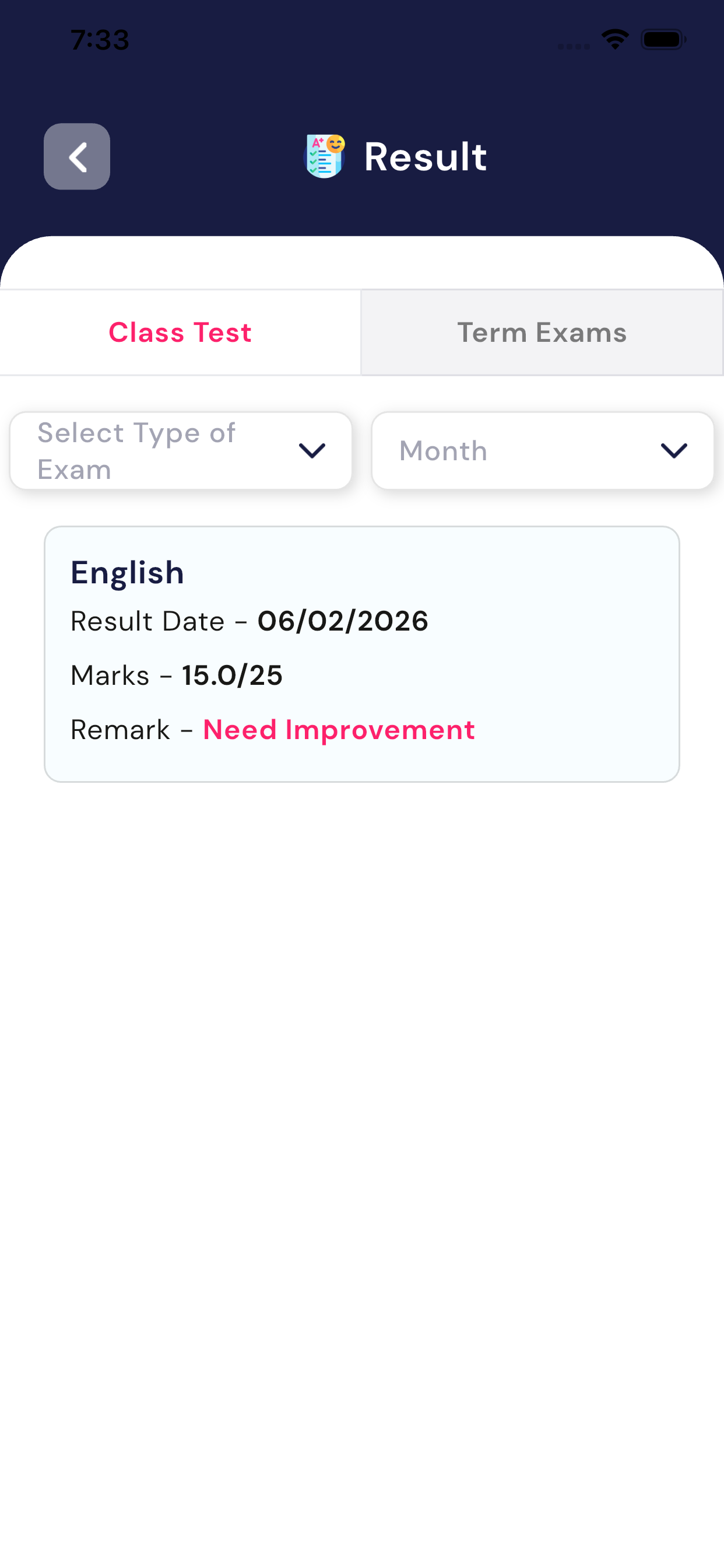
Class Test Results
In this section, parents can view:
- All class tests conducted to date
- Subject-wise marks obtained by the child
- Performance status (if provided by the teacher)
👉 Only tests whose marks have been updated by the teacher will be visible.
Exam Results
This section shows:
- Results of school exams (such as Term Exams or Final Exams)
- Subject-wise marks
- Overall performance or final result (as provided by the school)
This helps parents understand the child’s performance in major examinations.
How Parents Can Use This Module
- Regularly check test and exam results
- Support the child in studies based on performance
- Stay informed without waiting for physical report cards
2.10 Gate Pass Module
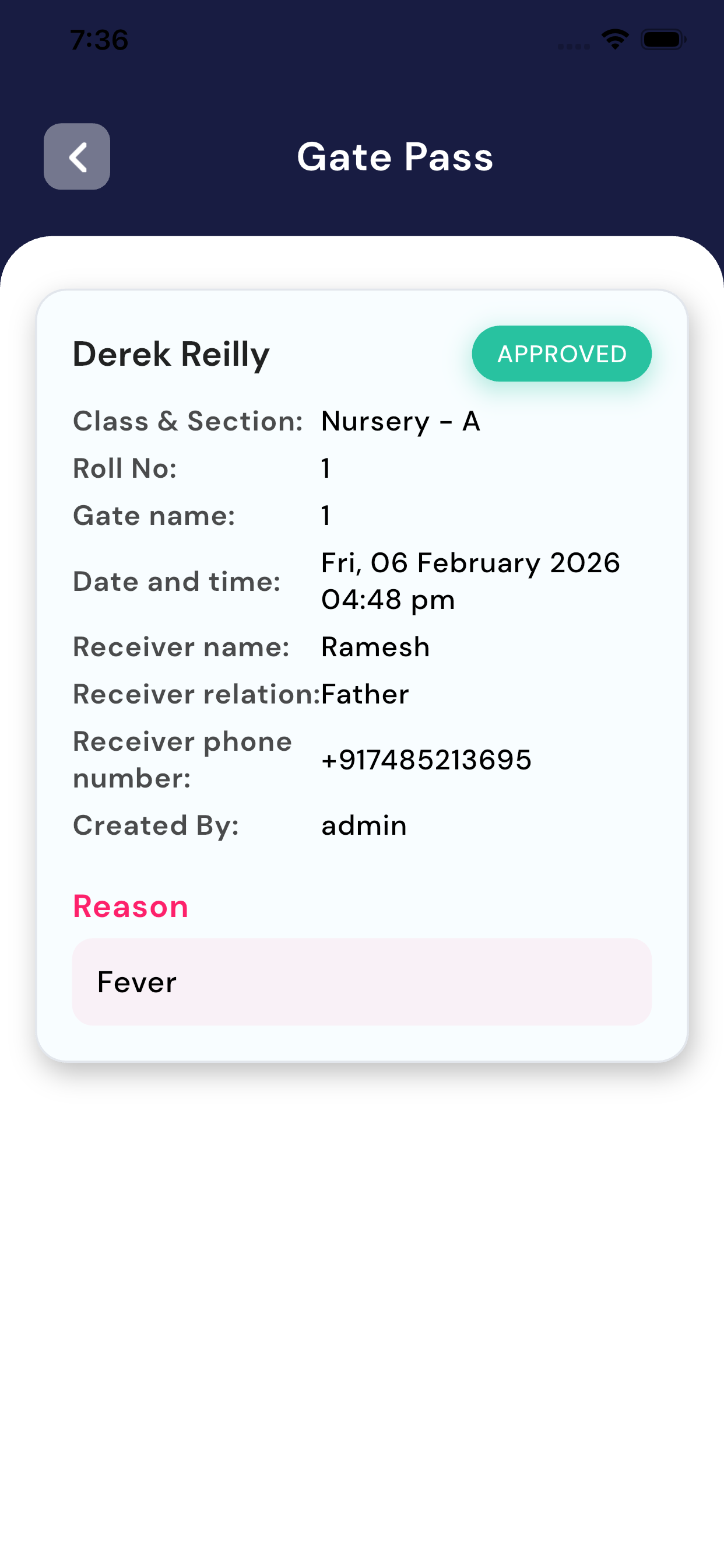
The Gate Pass Module is used when parents need topick up their child from school during school hours. This feature helps the school manage student safety and verify parent requests.
What is the Gate Pass Module?
The Gate Pass Module allows parents torequest permission to take their child out of school.
Once the gate pass is approved, the parent can safely collect the child from the school.
When to Use the Gate Pass?
Parents should use the Gate Pass when:
- The child needs to leave school early
- There is a medical or personal reason
- The parent needs to pick up the child during school hours
Information Shown in the Gate Pass
The Gate Pass may include:
- Child’s name and class
- Date and time of pickup
- Reason for pickup
- Parent/Guardian details
- Gate Pass status (Pending / Approved)
Important Points for Parents
- The child can be taken from schoolonly after gate pass approval
- Always show the Gate Pass to school security or staff
- Without an approved gate pass, the child will not be released
- Gate Pass is valid only for the selected date and time
2.11 Student Leave Request Module
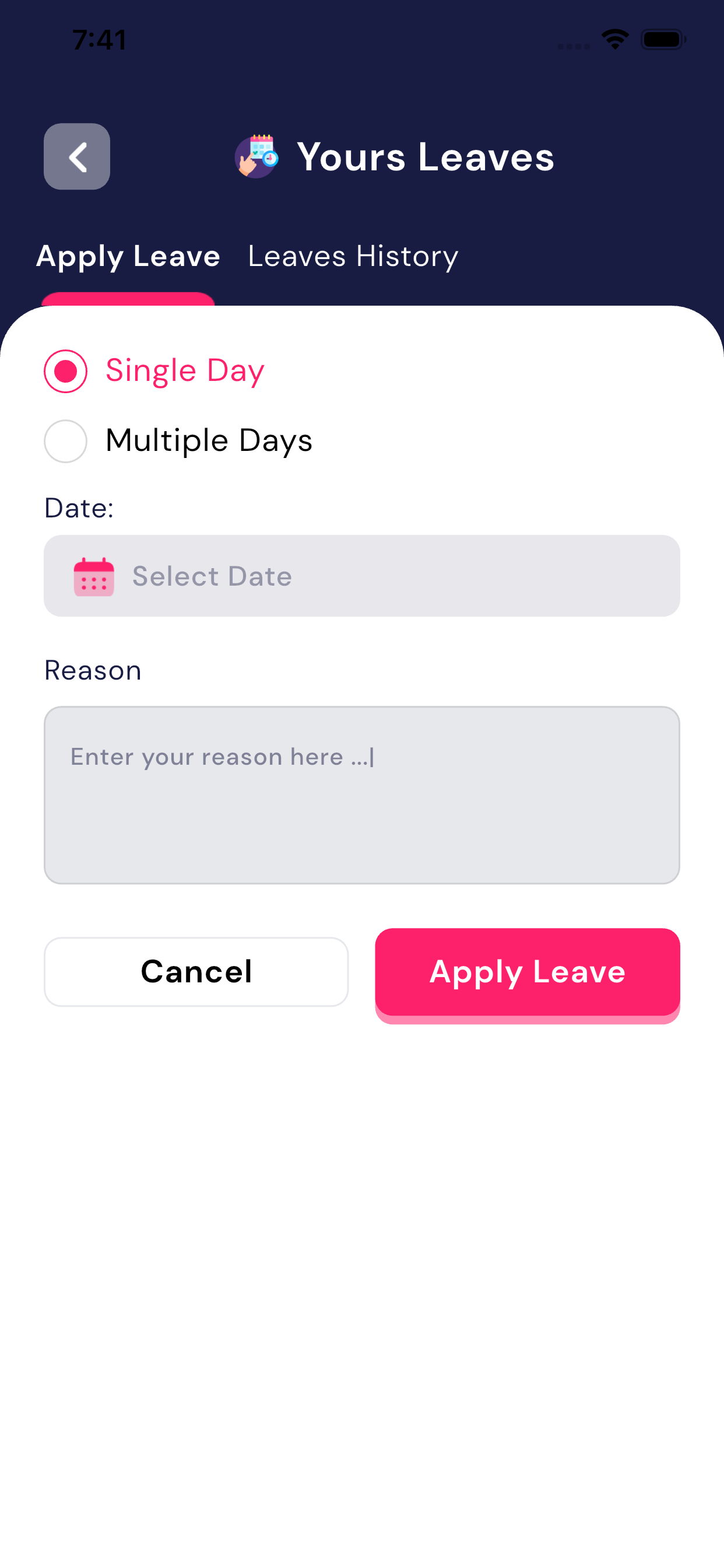
The Student Leave Request Module allows students or parents to apply for leave in advance. The leave request is sent to the teacher forapproval or rejection.
What is the Student Leave Request Module?
This module is used when a student is unable to attend school and needs official permission from the teacher.
Leave Approval Process
- The teacher will review the leave request
- The teacher can:
- ✅ Approve the leave
- ❌ Reject the leave
- The leave status is updated in the app
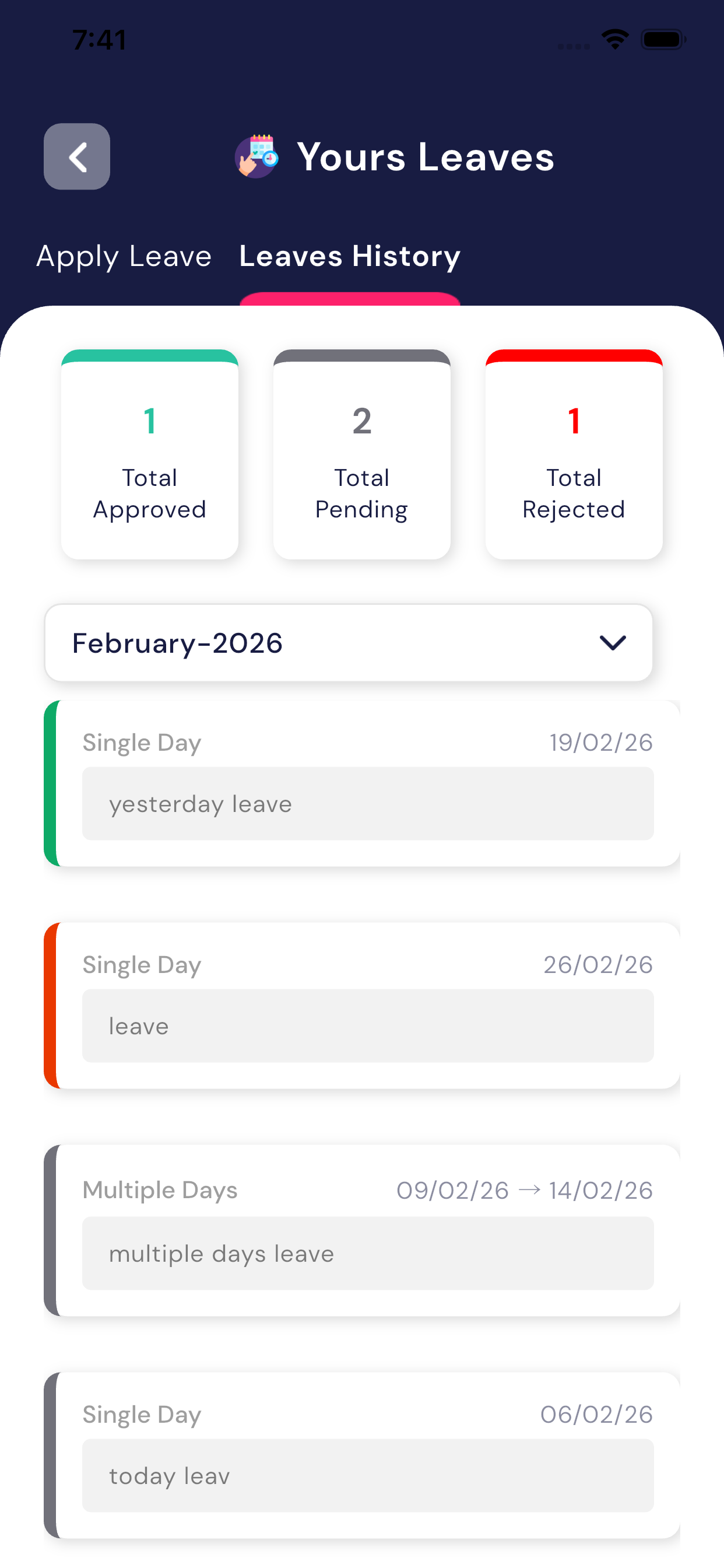
Leave Status Types
Each leave request will show one of the following statuses:
- Pending – Request is waiting for teacher approval
- Approved – Leave has been accepted by the teacher
- Rejected – Leave has been declined by the teacher
Leave History
- All leave requests submitted by the student are shown in theLeave History
- Parents and students can view:
- Leave dates
- Reason for leave
- Approval status
- This helps track past and current leave records easily
Important Points
- Leave should be applied before the leave date
- Approved leave is considered valid by the school
- Rejected leave means the student is expected to attend school
- Always check the leave status in the app
2.12 Class Timetable
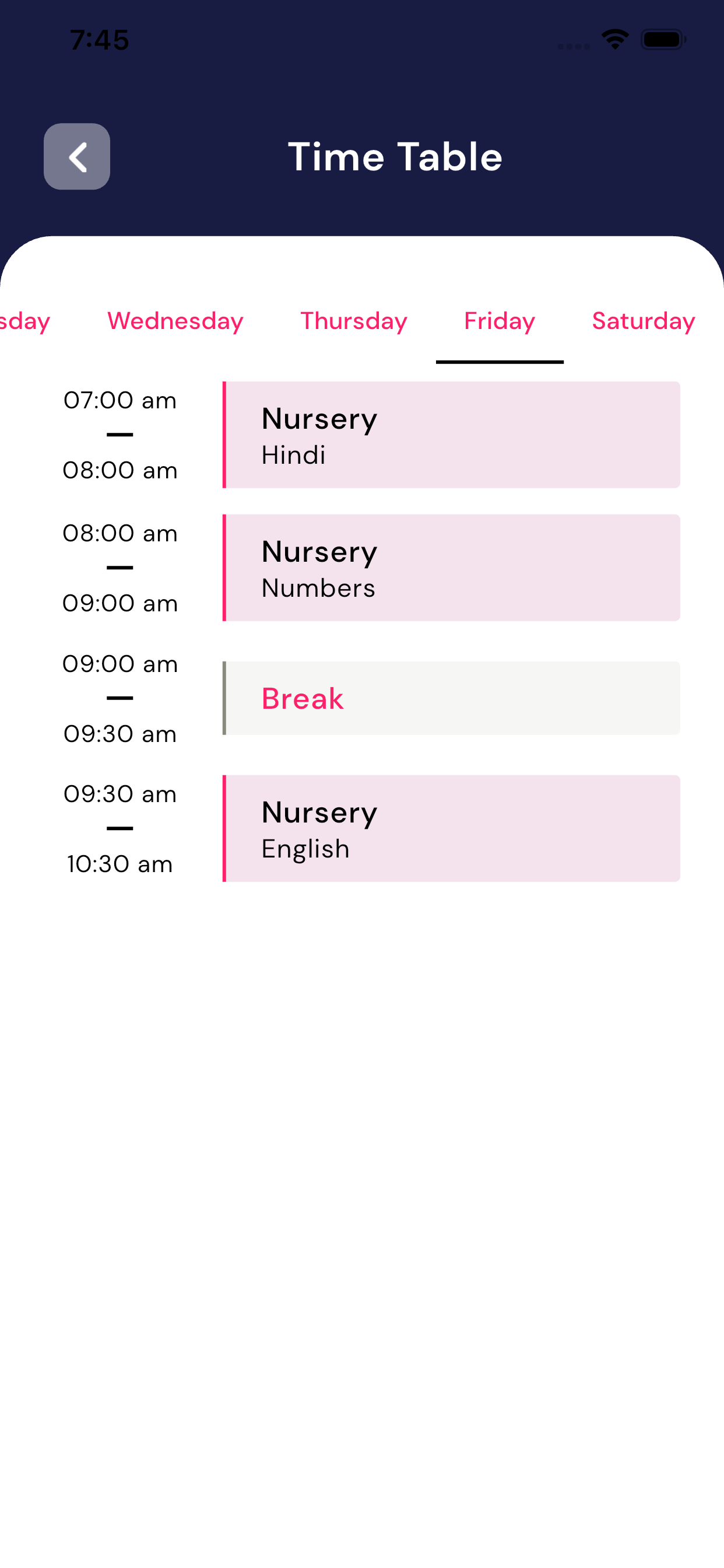
The Weekly Class Timetable Module shows thecomplete weekly schedule of classes. It helps students and parents knowwhich teacher will take which subject and at what time, for each day of the week.
What is the Weekly Class Timetable?
This module displays theday-wise class schedule for the entire week, including:
- Subject name
- Teacher name
- Lecture time
- Class period order
Information Shown in the Timetable
For each class/lecture, the following details are shown:
- Subject Name – What subject will be taught
- Teacher Name – Which teacher will take the lecture
- Lecture Time – Start and end time of the class
2.13 Language Module
The Language Module allows parents tochange the app language according to their preference. This helps users use the app more comfortably in a language they understand better.
What is the Language Module?
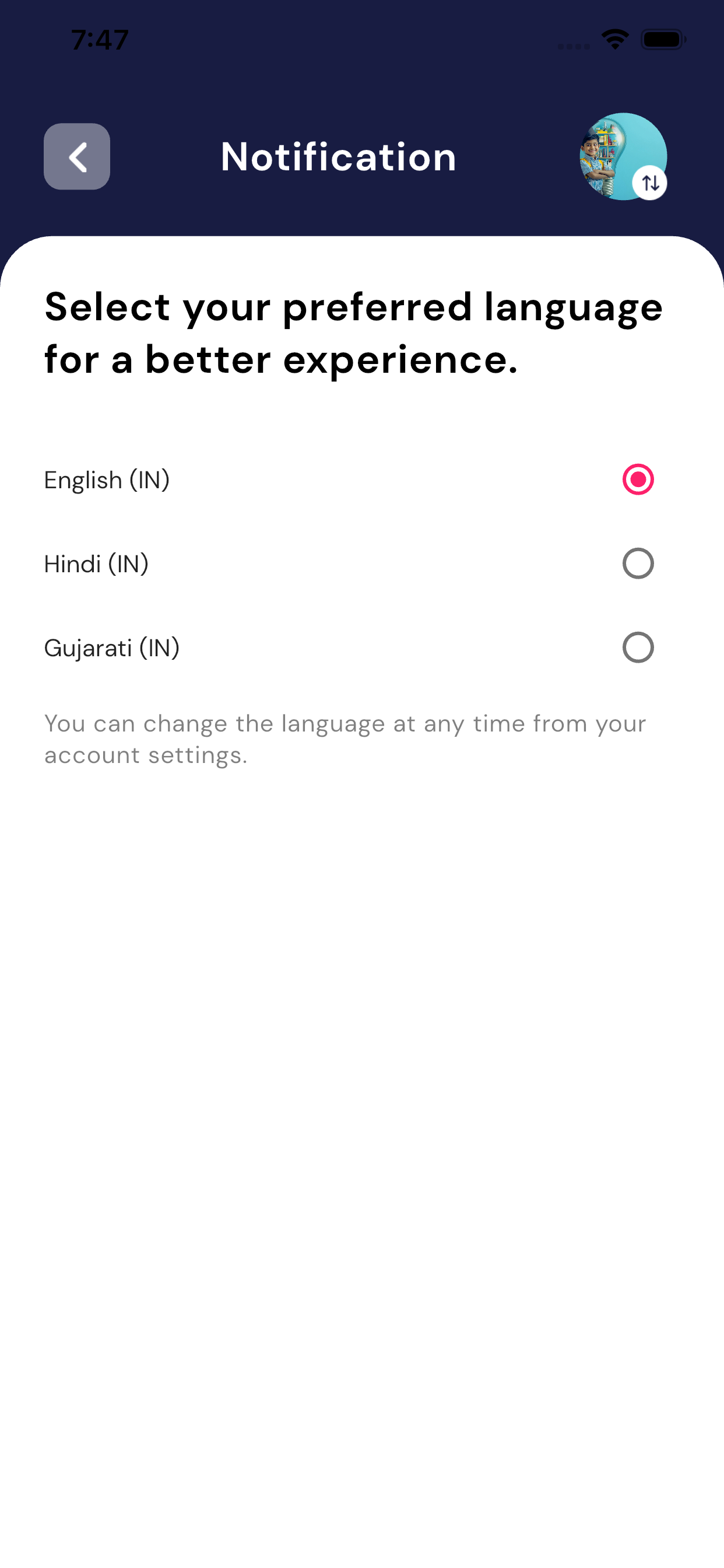
This module lets parents select theirpreferred language for the Parents App. Once the language is changed, all app text will be displayed in the selected language.