Registration Flow
SSMS - School Registration System User Guide
Introduction
This user guide provides comprehensive instructions for the School Registration System on the SSMS Website. The system enables schools to register on the platform and receive access to a customized School Management System.
Registration Process Overview
The registration process consists of the following main steps:
- The school completes and submits the registration form
- SSMS Team creates a Super Admin panel for the school
- Credentials are sent to the school admin via email
- Super Admin can then create accounts for other staff members
Detailed Registration Steps
Step 1: Accessing the Registration Form
- Contact the SSMS Team at arun@saurabhinfosys.com
- Will get a registration form link or send the school details directly to the SSMS Team
Step 2: After Completing the Registration Form
Fill out all required information in the registration form:
School Information
- School name (required)
- Logo
- Contact number (required)
- Alternate contact number
- Email (required)
- Website
- Principal name (required)
- School medium (English, Hindi etc..)
- Established Year (required)
- Registration Code
- Academic year (required)
- Academic Start Month (required)
- Academic End Month (required)
- Address (required)
Step 3: Form Submission and Verification
- Review all entered information for accuracy
- Click the Submit button
- A confirmation email will be sent to the provided email address
Step 4: Account Creation and Credential Delivery
After submission, the SSMS Team will:
- Process the registration (typically within 2-3 hours)
- Create a dedicated Super Admin panel for your school
- Generate secure login credentials
- Send an email to the primary contact with:
- Login URL specific to your school
- username/email (typically the primary contact's email)
- Temporary password (must be changed at first login)
- Brief instructions for first-time login
First Login and System Setup
Step 5: Super Admin First Login
- Access the provided login URL from the credentials email
- Enter the provided username/email and temporary password
- Complete the mandatory password change process
- Enter the temporary password
- Create and confirm a new strong password
- Complete the Super Admin profile setup
Step 6: Creating Additional User Accounts
As Super Admin, you can now create accounts for other staff members:
- Navigate to "User Management" in the dashboard
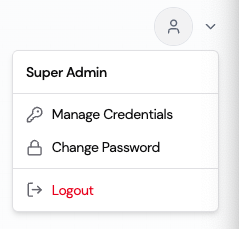
- Click on Manage Credentials
- Enter the required information:
- Full name
- Email address (will be used as username)
- Password
- Save the credentials
- Now, other users can log in to the Admin Panel, LMS System, and School Web Panel with the same credentials.
User Roles and Permissions
Super Admin Capabilities
The Super Admin has full access to all system features, including:
- Creating and managing all user accounts
- Setting up and configuring school-specific parameters
- Managing permission levels for all other users
- Accessing all modules and features of the system
- Requesting technical support and system modifications
Other Common User Roles
The Super Admin can create various user types with different permission levels:
- Admin: School administrators with broad but not complete system access
- Teacher: Access to student data, attendance, grades, and communications
- Staff: Administrative staff with access to specific modules
- Parent/Guardian: Limited access to their children's information only
- Student: Personal access to their own academic information
Support and Assistance
For any questions or issues during the registration process or system setup:
- Email: arun@saurabhinfosys.com
- Phone: +918735001217
- Help Center: Access comprehensive documentation and tutorials at https://myschoolmanagementsystem.com/contact-us
Important: Keep your login credentials secure and never share your password with anyone. Always log out when you've finished using the system, especially on shared computers.